
If this is your first time setting up WhatsApp with Meta, do not worry. This guide walks you through every screen slowly, using the exact screenshots from Ninja, Meta, and the WhatsApp Business app.
By the end of this guide, you will be able to:
- connect your WhatsApp Business number to Ninja
- add the payment method Meta requires
- understand why templates need approval first
- create your own approved template
- send your first WhatsApp blast
Table of Contents
- What You'll Need Before You Start
- Part 1: Open the WhatsApp Integration in Ninja
- Part 2: Complete the Meta Setup Window
- Part 3: Connect Your Phone in the WhatsApp Business App
- Part 4: Finish the Setup and Add a Payment Method
- Part 5: Wait for Your First Template to Be Approved
- Part 6: Create Your Own WhatsApp Template
- Part 7: Send Your First WhatsApp Blast
- Troubleshooting Tips
What You'll Need Before You Start
Before you begin, keep these things ready:
- access to your Ninja account
- access to the correct Facebook/Meta business account
- the WhatsApp Business app installed on your phone
- the exact business phone number you want to connect, including country code
- a credit card or debit card for Meta billing
- a few uninterrupted minutes, with your laptop and phone next to each other
Very important: If Meta shows more than one business portfolio, choose the correct one and keep choosing that same business throughout the setup. The most common mistake is selecting one business on one screen and a different one on the next screen.
Part 1: Open the WhatsApp Integration in Ninja
Start inside Ninja.
On the Integrations page, you will see the WhatsApp Business card showing Not Connected.
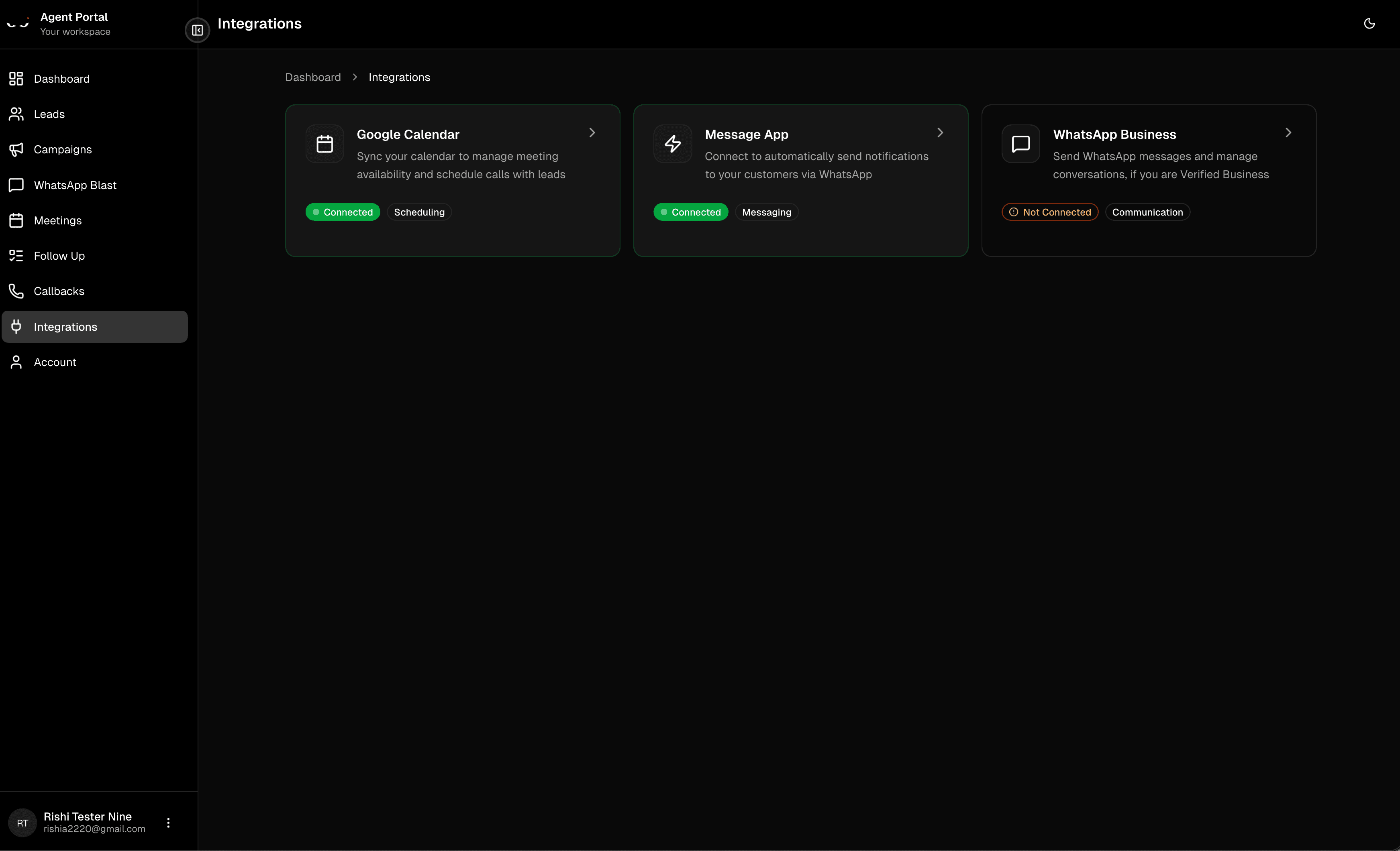
Click the WhatsApp Business card to open the setup page.
You will land on a screen with a big Login with Facebook button.
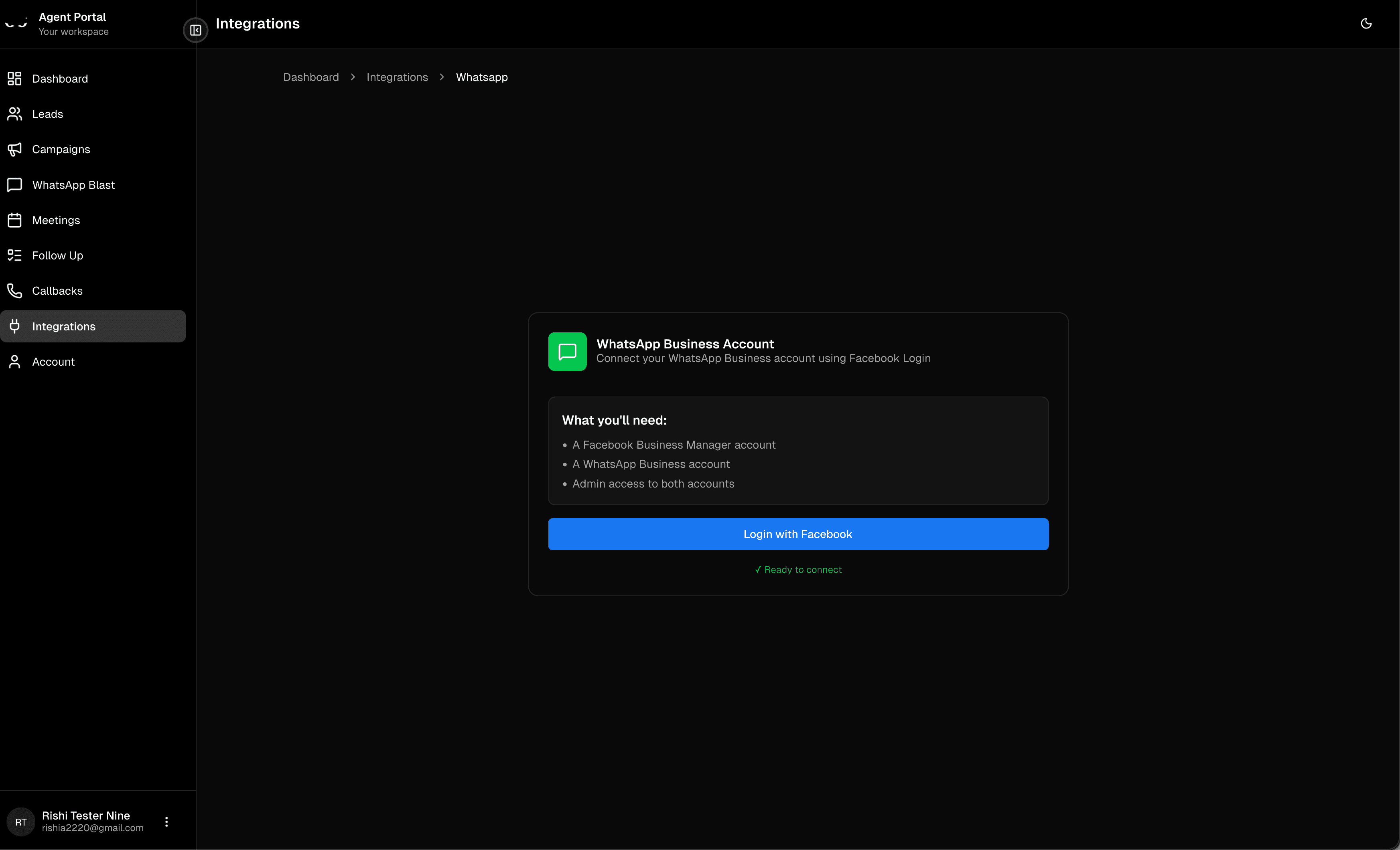
Now click Login with Facebook.
Small note: If this button keeps loading or nothing opens, refresh the page once and try again. That usually fixes it.
Part 2: Complete the Meta Setup Window
After clicking Login with Facebook, Meta opens a setup window. The screens below are the exact flow you will usually see.
Quick Visual Guide
| Step 1 | Step 2 |
|---|---|
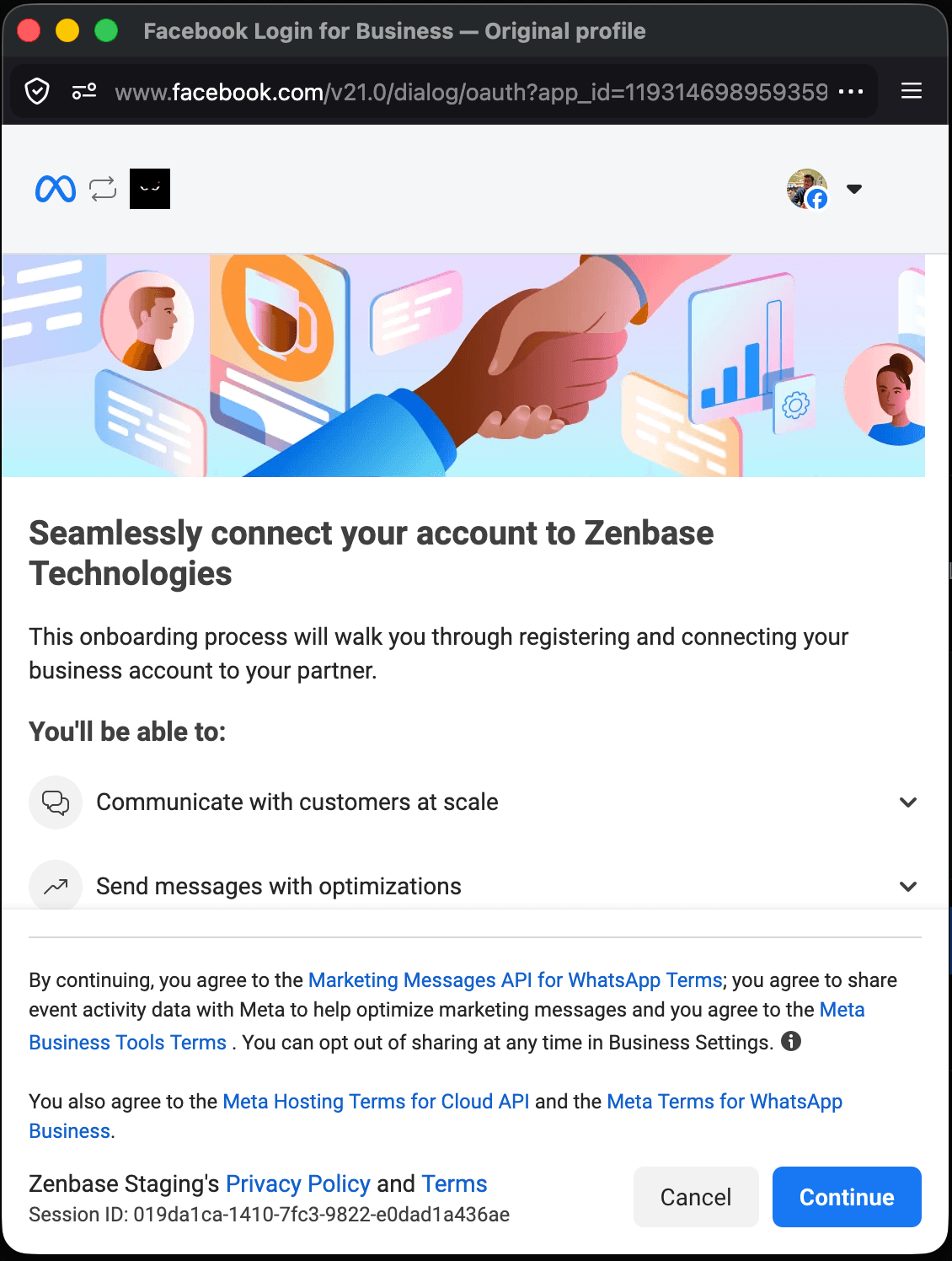 | 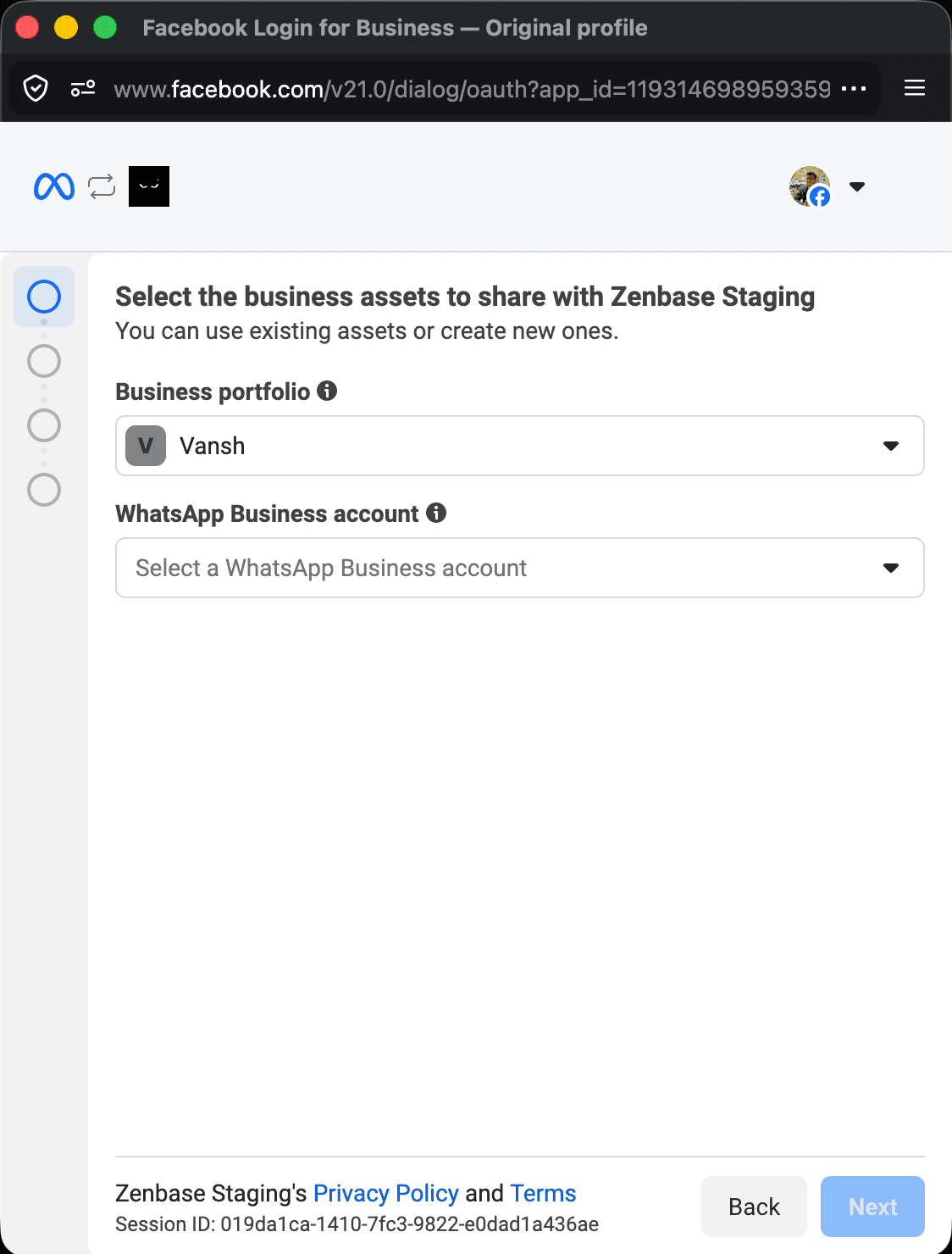 |
| Meta welcomes you to connect Zenbase. Click Continue. | Choose the correct business portfolio. |
| Step 2a | Step 3 |
|---|---|
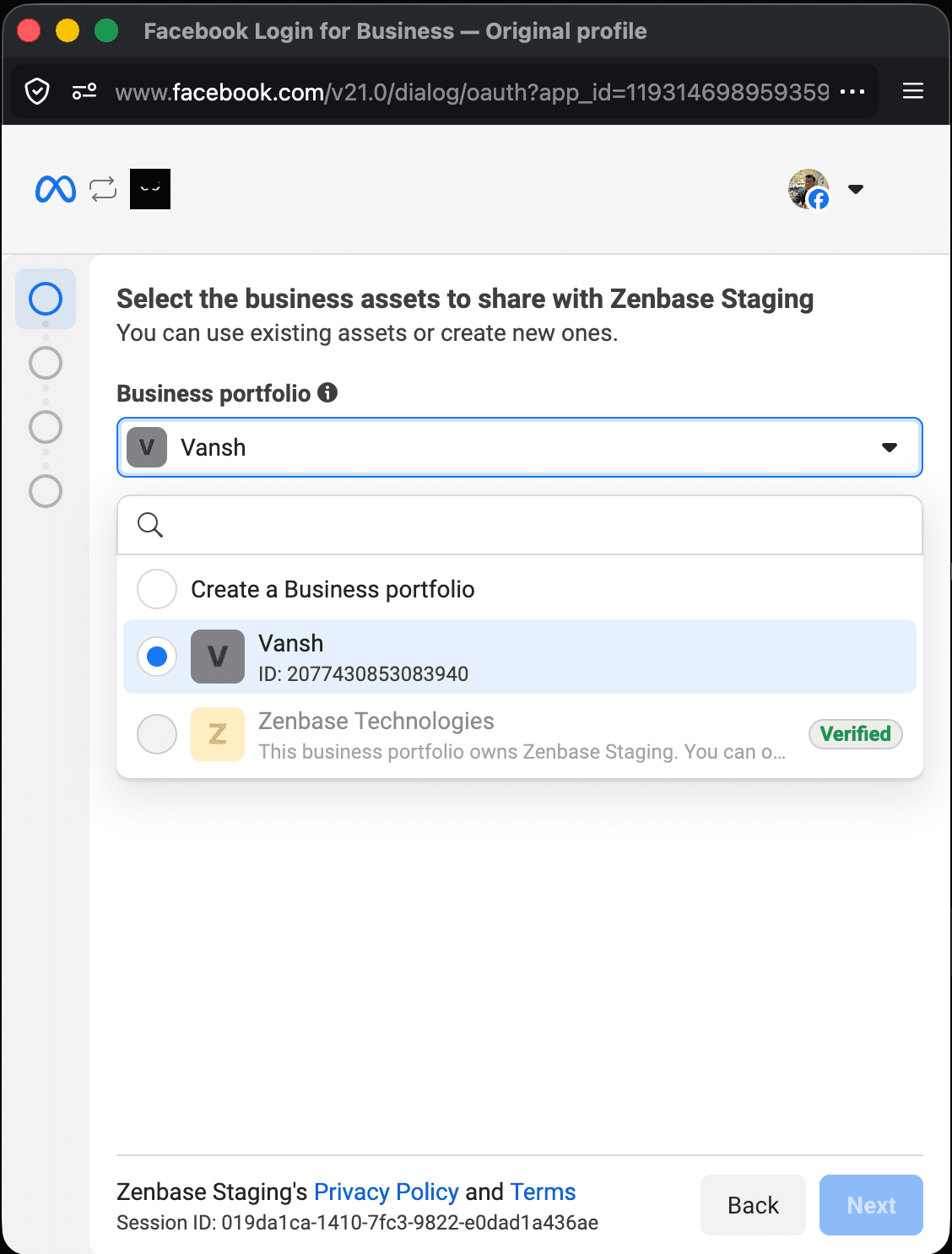 | 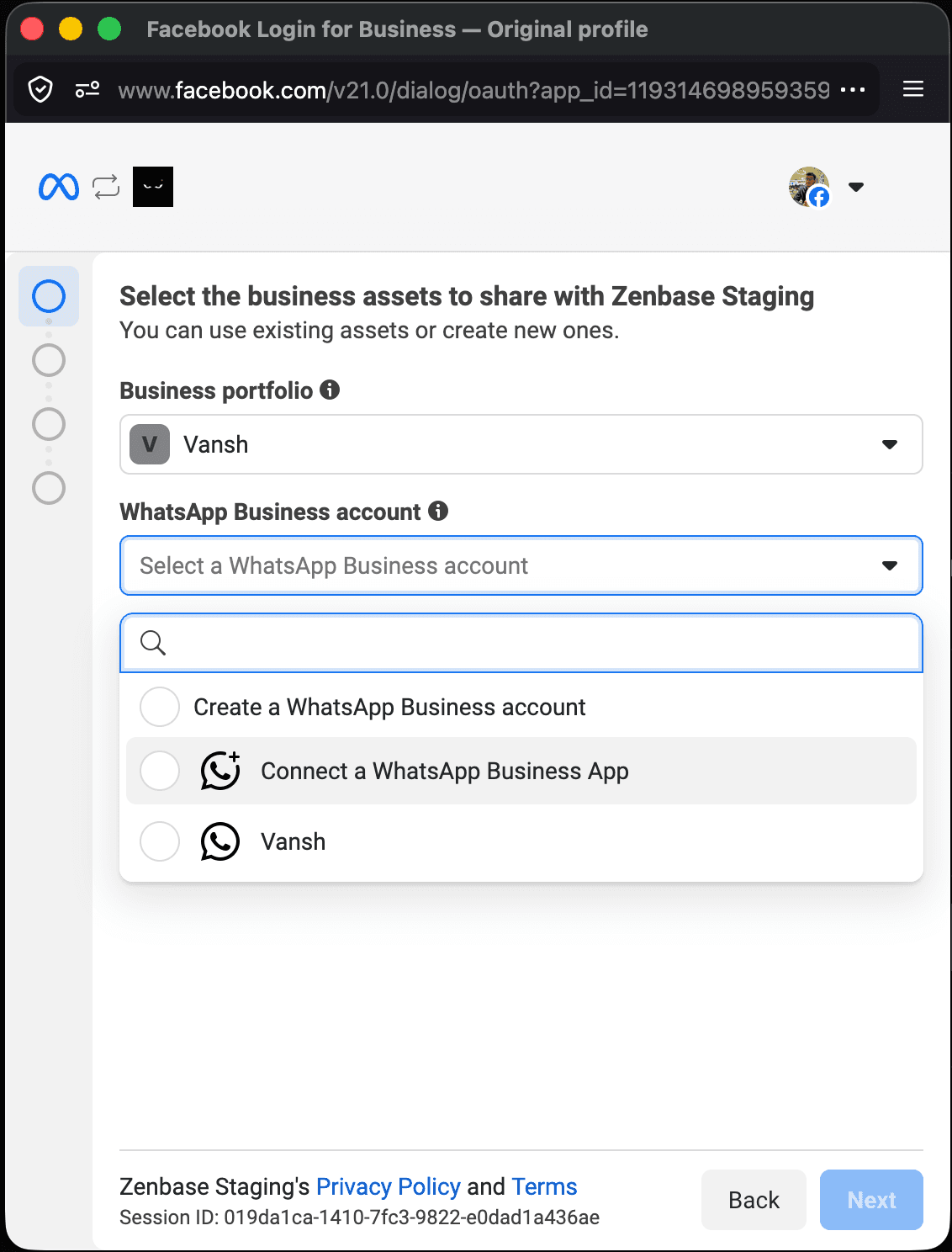 |
| If Meta shows multiple businesses in a dropdown, stop and pick the exact one you want to keep using. | In the WhatsApp account dropdown, choose Connect a WhatsApp Business App. |
| Step 4 | Step 5 |
|---|---|
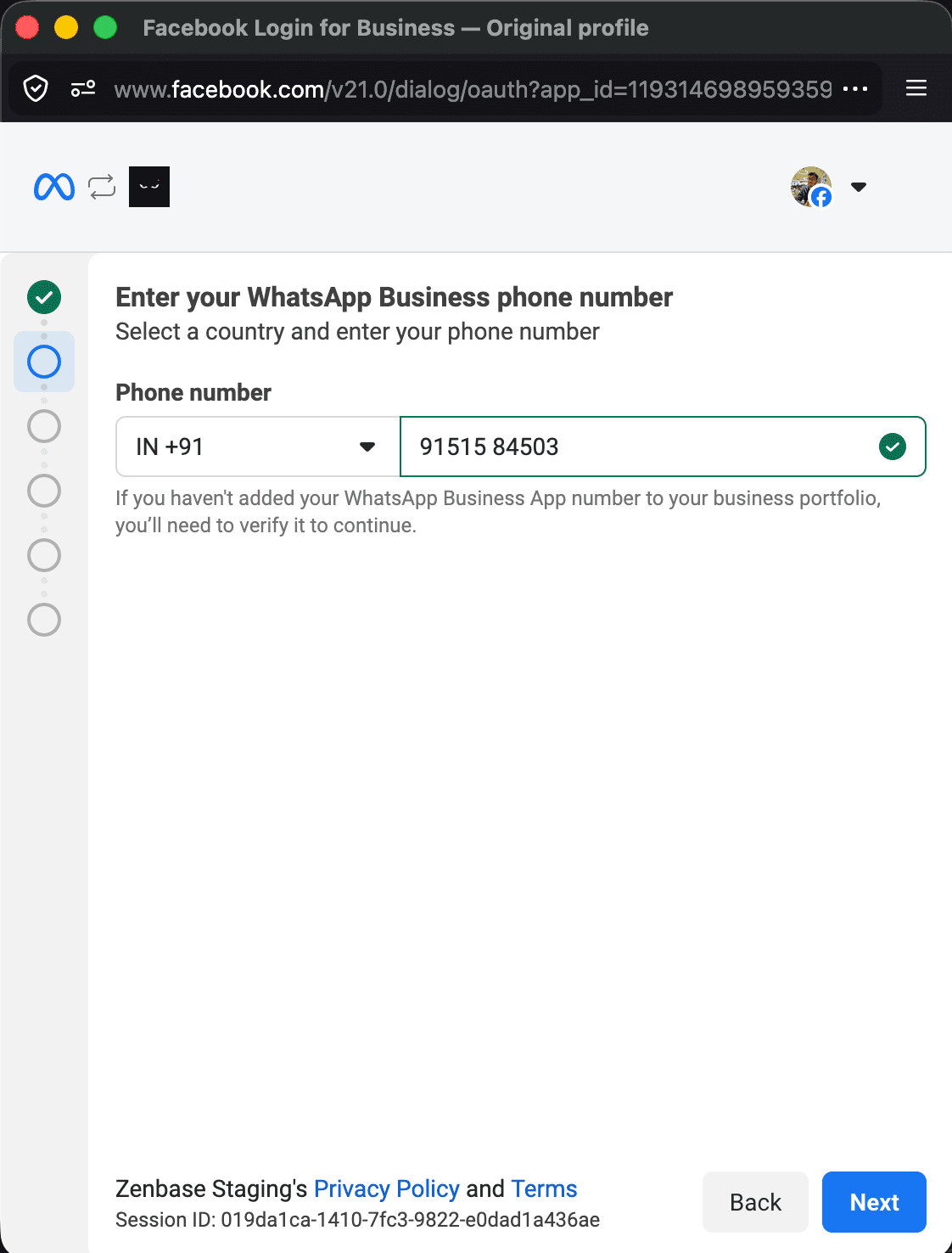 | 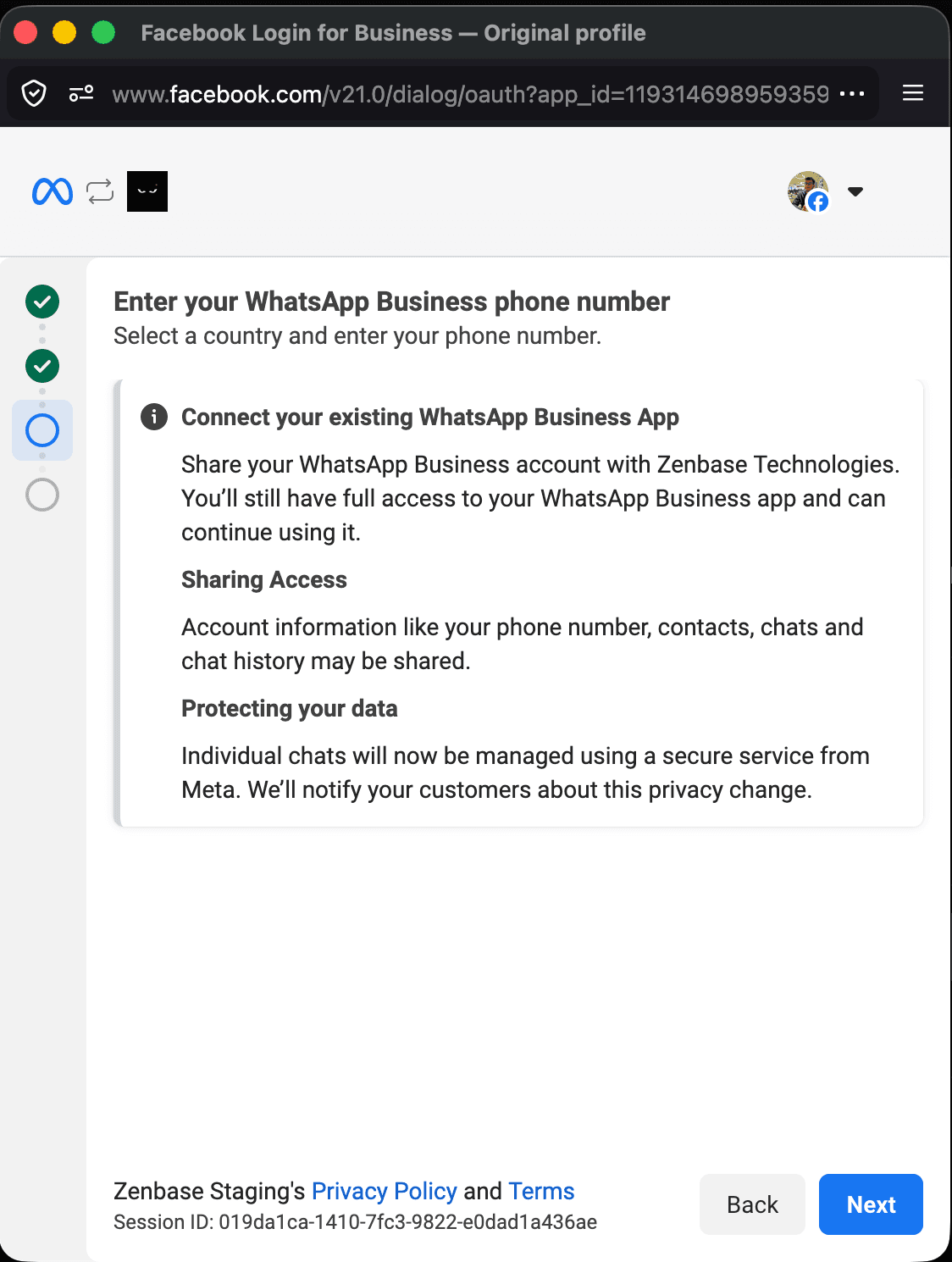 |
| Enter the same number that already exists in your WhatsApp Business app. | Confirm that Meta is connecting your existing app, then click Next. |
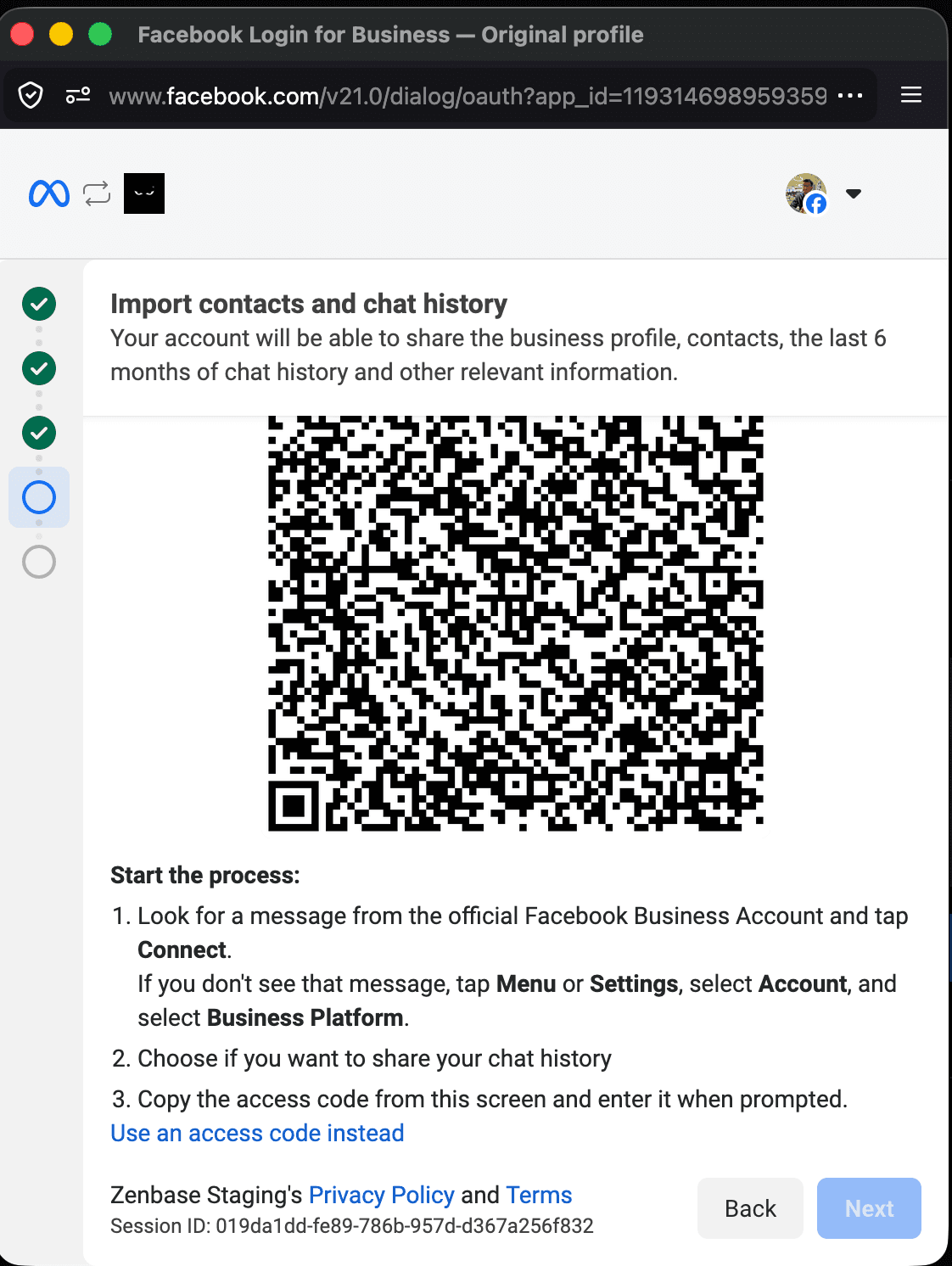
The final Meta screen shows a QR code and also gives you the option to use an access code instead.
What to Do on Each Meta Screen
- On the welcome screen, click Continue.
- When Meta asks for a business portfolio, choose the correct one and keep using that same business for the rest of the setup.
- If Meta shows a dropdown with several businesses, double-check before proceeding. This is one of the easiest places to choose the wrong account by mistake.
- In the WhatsApp account dropdown, choose Connect a WhatsApp Business App.
- Enter the exact number that is already being used in your WhatsApp Business app.
Double-check:
- the country code
- the full phone number
- that it is your business number, not a personal WhatsApp number
If the number is wrong, the connection will not finish properly.
- When Meta confirms it is connecting your existing WhatsApp Business app, click Next.
- On the final QR code screen, you now have two ways to continue:
- scan the QR code
- use the access code instead
Our recommendation: Use the access code instead of scanning the QR code. In practice, it tends to work more reliably.
Part 3: Connect Your Phone in the WhatsApp Business App
Pick up the phone that has your WhatsApp Business app installed and follow these steps:
Open Settings | Open Account | Open Business Platform |
|---|---|---|
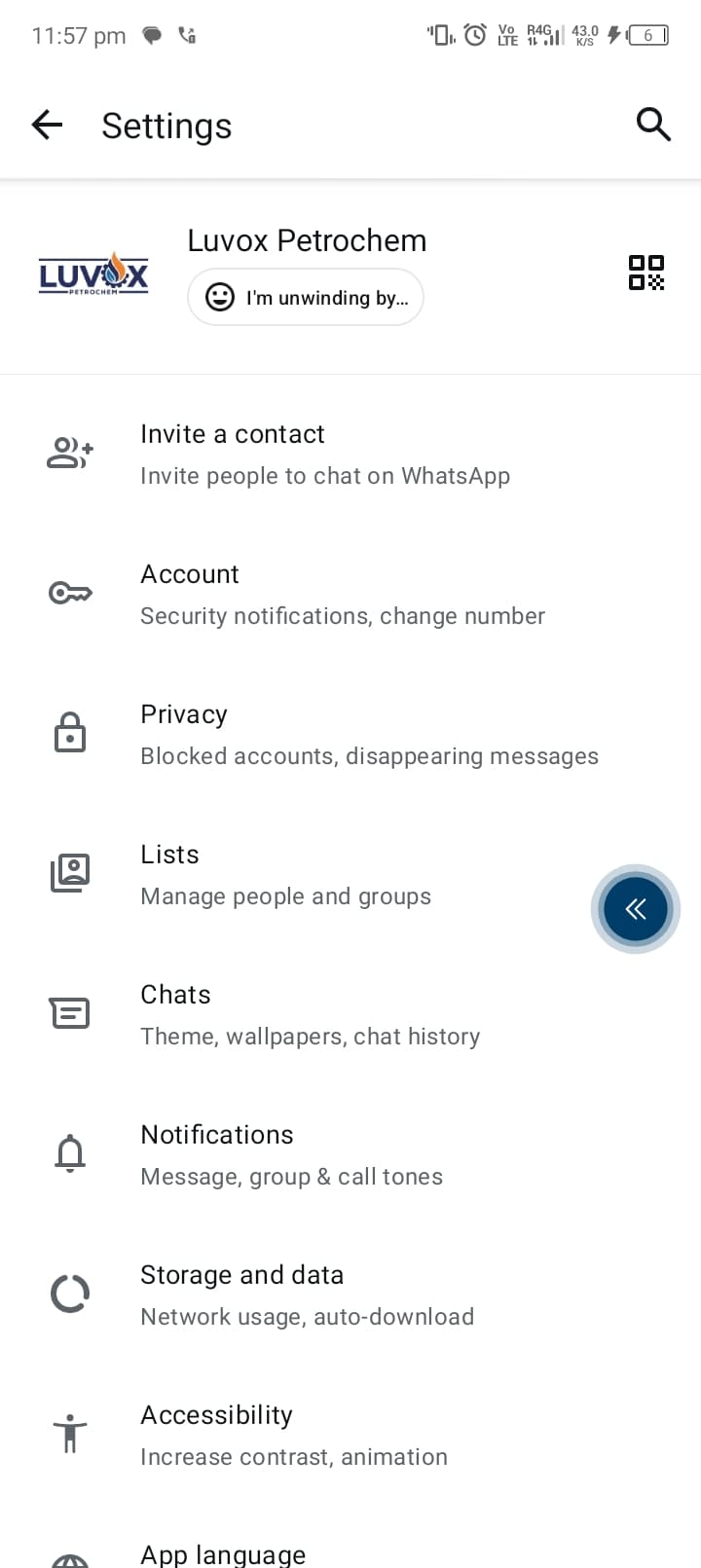 | 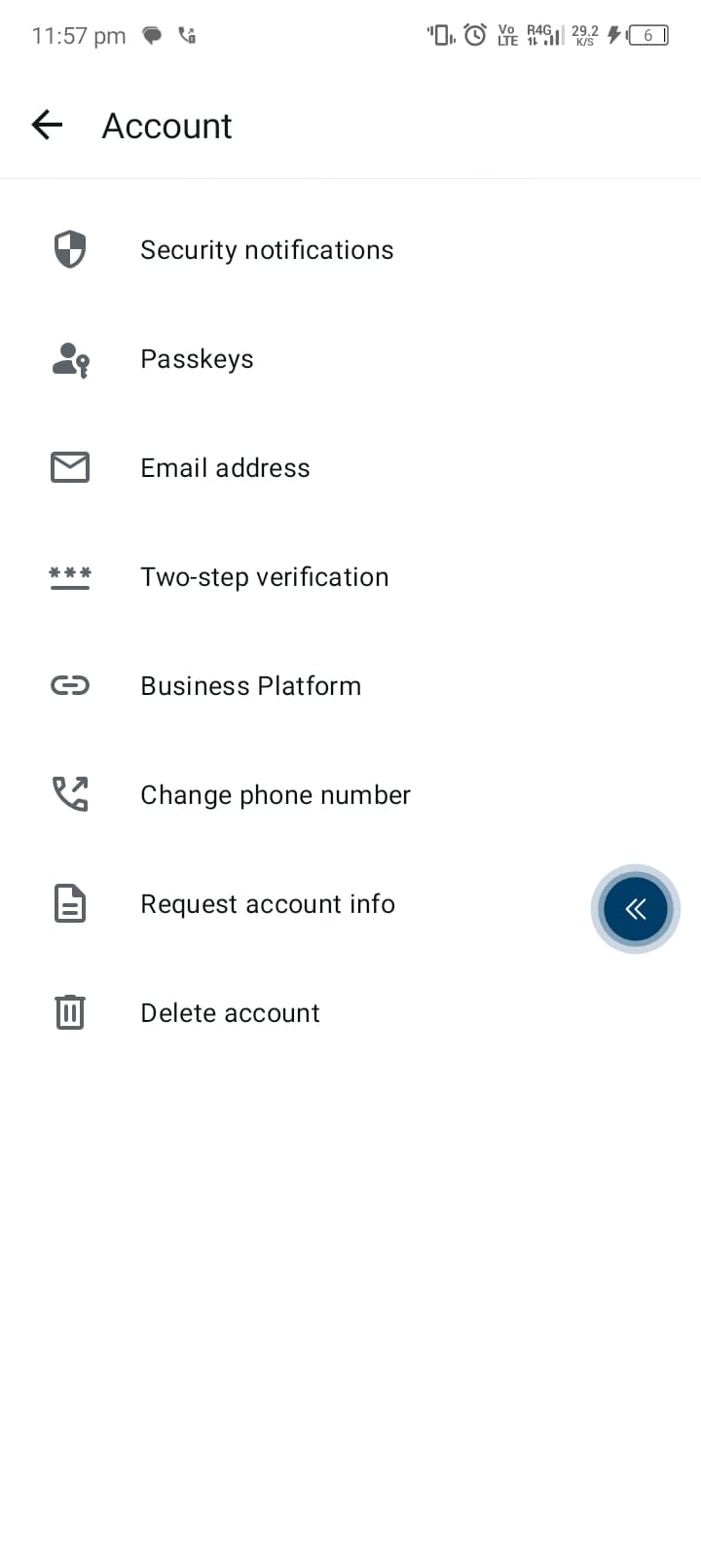 | 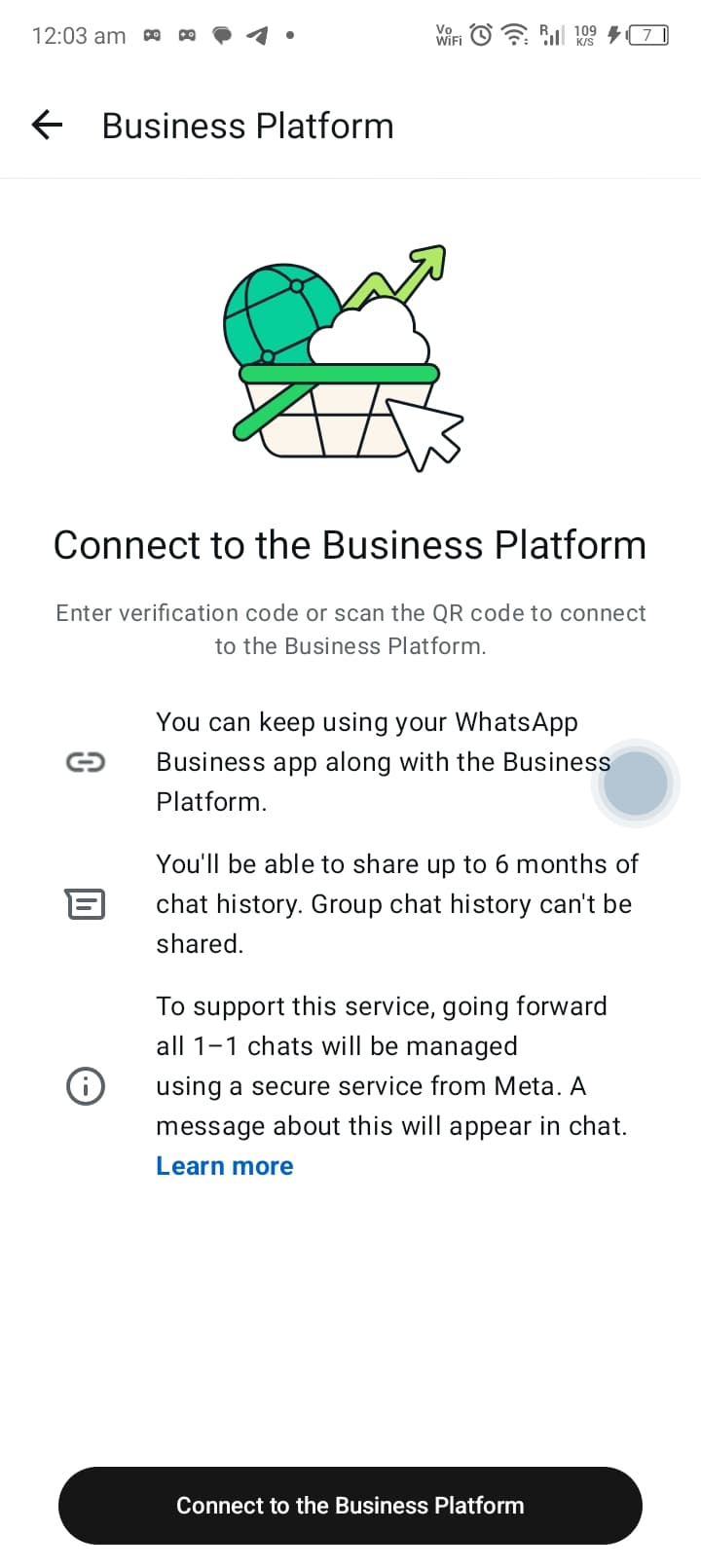 |
| Open Settings in WhatsApp Business. | Tap Account. | Tap Business Platform, then tap Connect to the Business Platform. |
Once you reach that final screen on your phone:
- choose to enter the access code from your laptop if Meta gives you the choice
- if WhatsApp asks whether you want to share old chats, choose Don't share chats
- continue through the prompts
- wait around 45 seconds for the connection to finish
During this step, please be patient. Sometimes people retry too quickly even though the connection is still processing in the background.
Good to know: You can keep using your WhatsApp Business app. You do not need to give up your app just to connect it to Ninja.
Part 4: Finish the Setup and Add a Payment Method
After the phone connection is complete, Meta will show your business name. Continue and finish that flow.
At that point, Meta may open an Add Payment Method page in another tab. Complete that step right away.
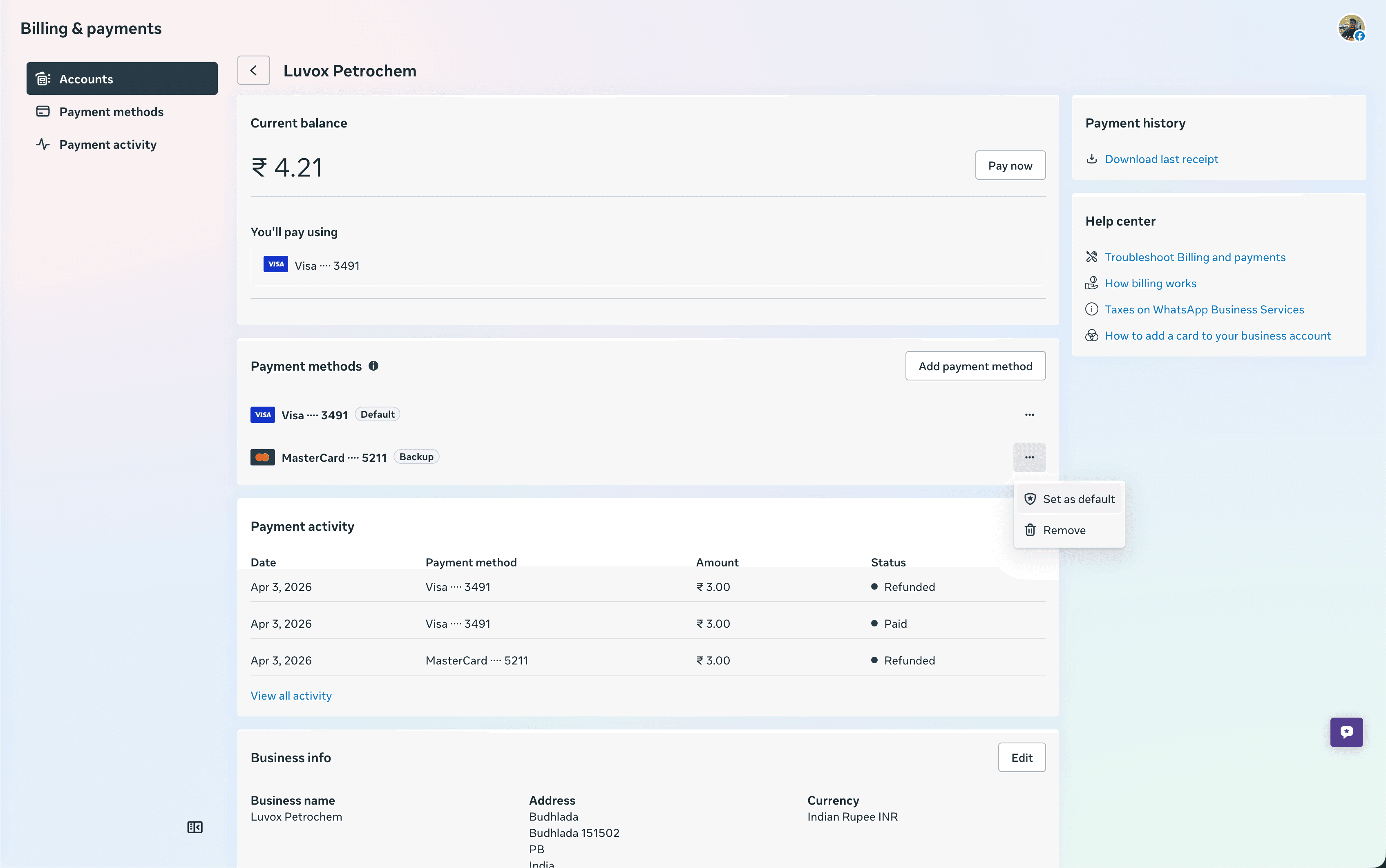
Here is what to do:
- add a credit card or debit card
- make sure at least one card is marked Default
- if your only card says Backup, click the three dots and set it as Default
A small temporary charge may appear when you add the card. Meta usually reverses or refunds it, but it can take a day or two to fully reflect depending on your bank.
When you finish the payment step:
- return to the Ninja tab
- wait on the page until you see the success message
- do not close Ninja too quickly while it is still completing the connection
This payment step matters because your WhatsApp business messaging will not work properly without a usable default payment method in Meta.
Part 5: Wait for Your First Template to Be Approved
Once the connection is done, you should already have a starter template available.
You can find it in either place:
- the same Integrations > WhatsApp area
- WhatsApp Blast > Templates in the left sidebar
At first, the template may show Pending. That is normal. Meta must approve templates before business-initiated WhatsApp messages can be sent.
Meta approval is outside Ninja's control, so this part simply takes time. In many cases it is faster, but you should still allow 24-48 hours.
Once approved, it will look like this:
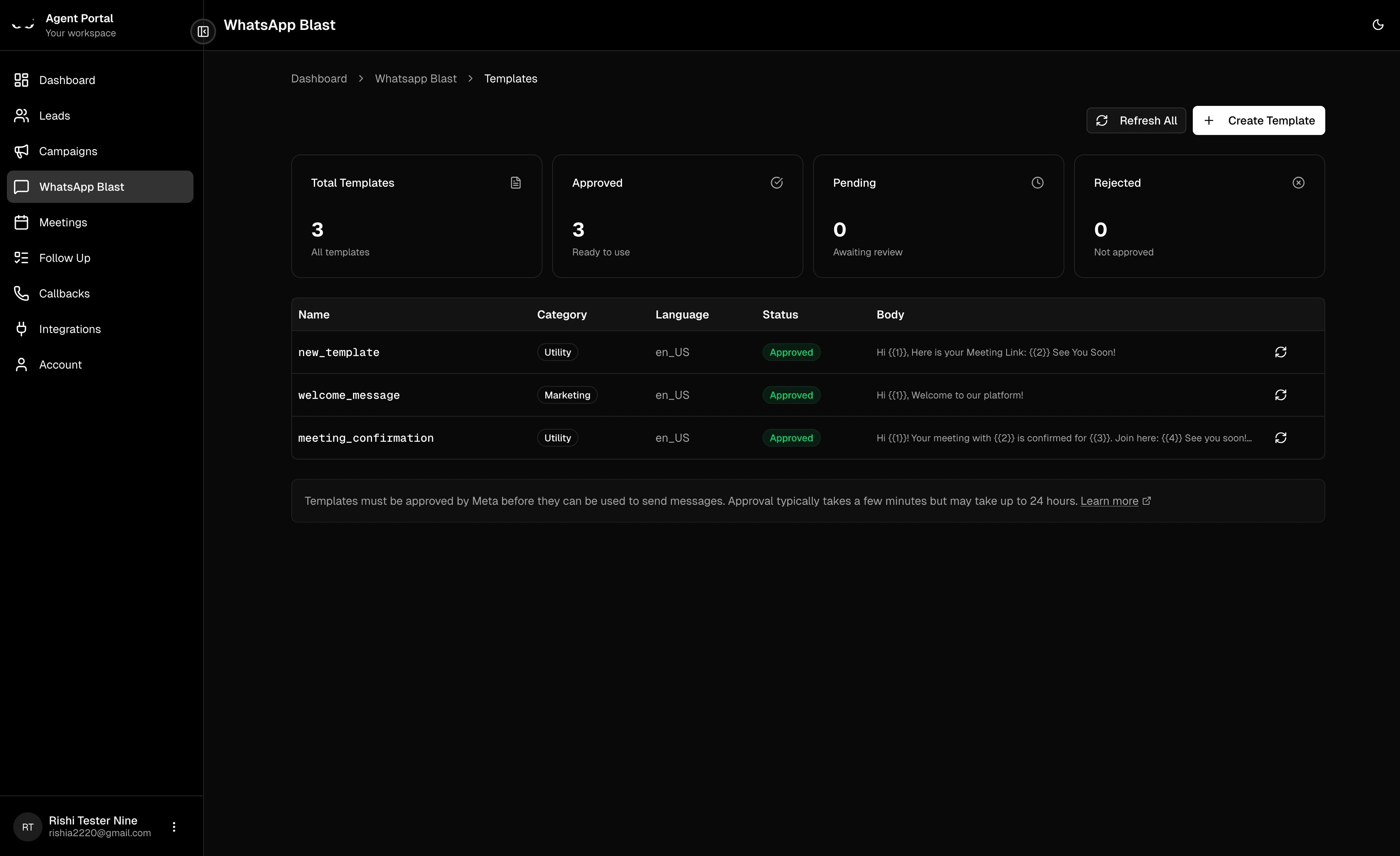
You can use the refresh button to check the latest status, but if the template is still pending, it simply means Meta has not finished reviewing it yet.
Part 6: Create Your Own WhatsApp Template
After your first template is approved, you can create more whenever you need them.
Go to WhatsApp Blast > Templates, then click Create Template.
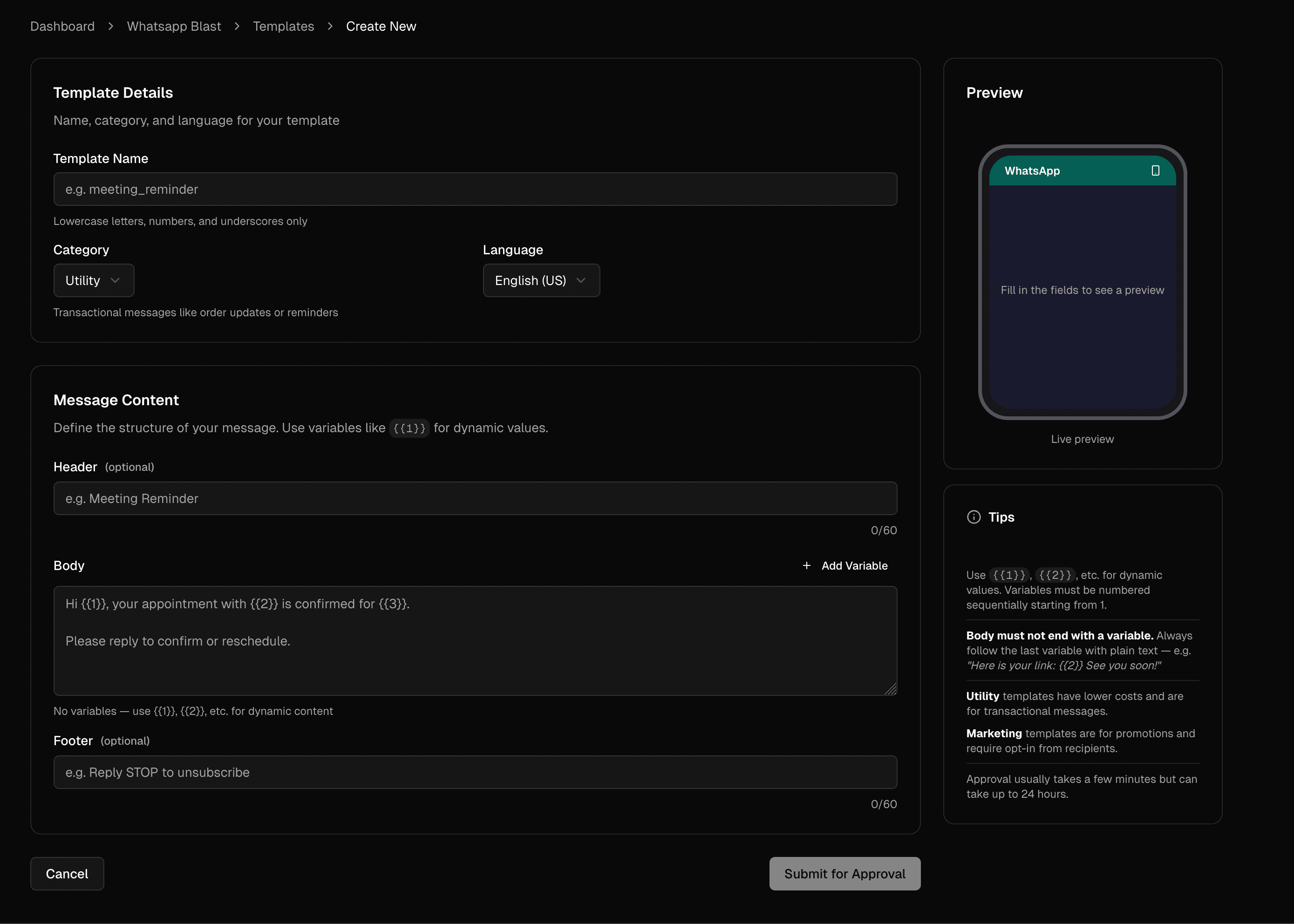
Here is how to think about each field in simple terms:
- Template Name: an internal name for you, such as
meeting_reminder - Category: what kind of message this is
- Language: the language your recipient will receive
- Header: a short title at the top of the message
- Body: the main message
- Footer: a smaller line at the bottom, often used for reply instructions
Understanding Template Categories
- Utility is best for reminders, confirmations, updates, links, and practical business messages
- Marketing is for promotional messages and should only be used when your contacts have agreed to receive that kind of communication
If you are not sure, most appointment reminders and follow-up links belong in Utility.
Understanding Dynamic Variables
Templates can include placeholders such as {{1}}, {{2}}, and {{3}}.
These placeholders are called variables. They let Ninja fill in different values for different people later.
For example:
Hi {{1}}could becomeHi RahulYour meeting with {{2}}could becomeYour meeting with Zenbase Teamis confirmed for {{3}}could becomeis confirmed for Tuesday at 4:00 PM
Important Rules When Creating Templates
- number your variables in order:
{{1}}, then{{2}}, then{{3}} - do not skip numbers
- do not end the message body with a variable
- always put some normal text after the last variable
For example:
- good:
Here is your meeting link: {{2}} See you soon! - not good:
Here is your meeting link: {{2}}
After creating the template, submit it for approval and wait for Meta to review it.
Expectation setting: Sometimes template approval happens quickly. Other times it can take longer. If Meta is slow, allow up to 24-48 hours.
Part 7: Send Your First WhatsApp Blast
Once you have an Approved template, you are ready to send a blast.
Go to WhatsApp Blast, then click New Blast.
Step 1: Choose an Approved Template
The first screen asks you to choose a template.
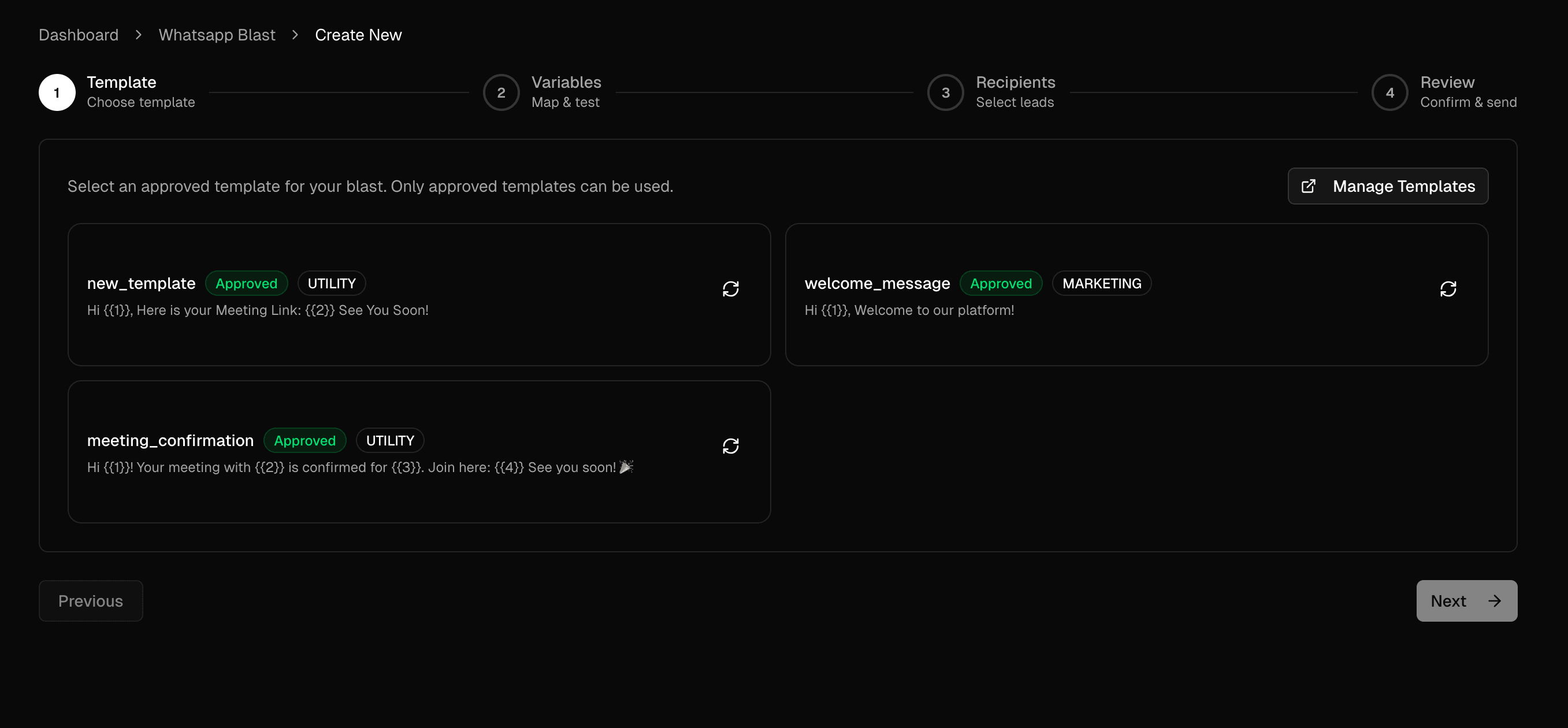
Only templates marked Approved can be used.
If the template you need is still pending, wait for approval or click the refresh icon next to it.
Step 2: Map the Variables and Optionally Send a Test Message
The second screen is where you tell Ninja what each placeholder should use.
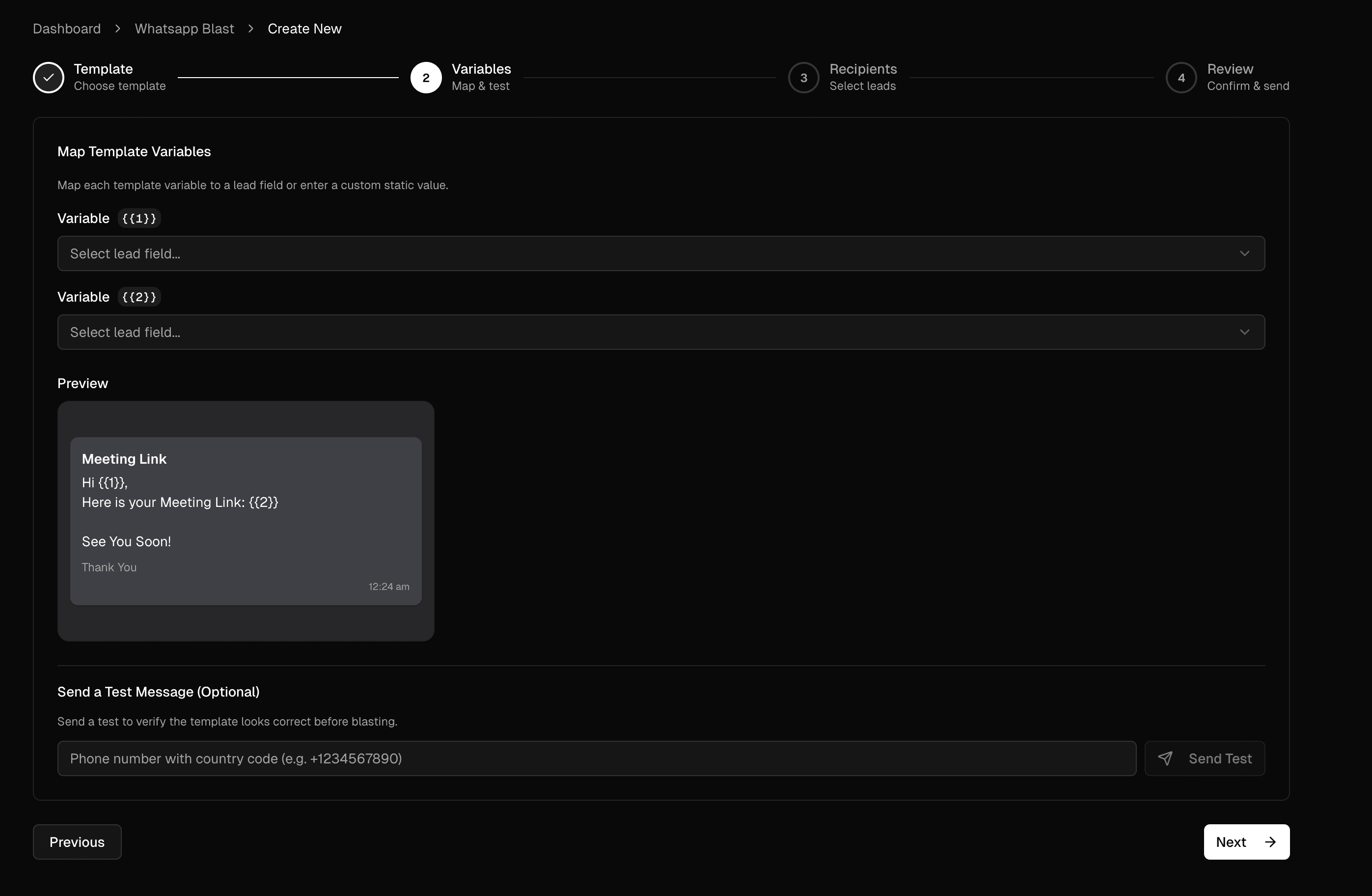
For each variable, you can map it to:
- Lead Name
- Phone
- Company
- Position
- a Custom Value that stays the same for everyone
Here is a simple example:
{{1}}-> Lead Name{{2}}-> Custom Value like your meeting link
The preview helps you see how the finished message will look before sending.
You can also send a test message to your own number before blasting, which is a smart way to catch mistakes early.
Very important: If you map a variable to a lead field and some lead does not have that value filled in, that message can fail for that lead. So before blasting, make sure your lead data is complete.
Step 3: Select the Recipients
The third screen is where you choose who should receive the message.
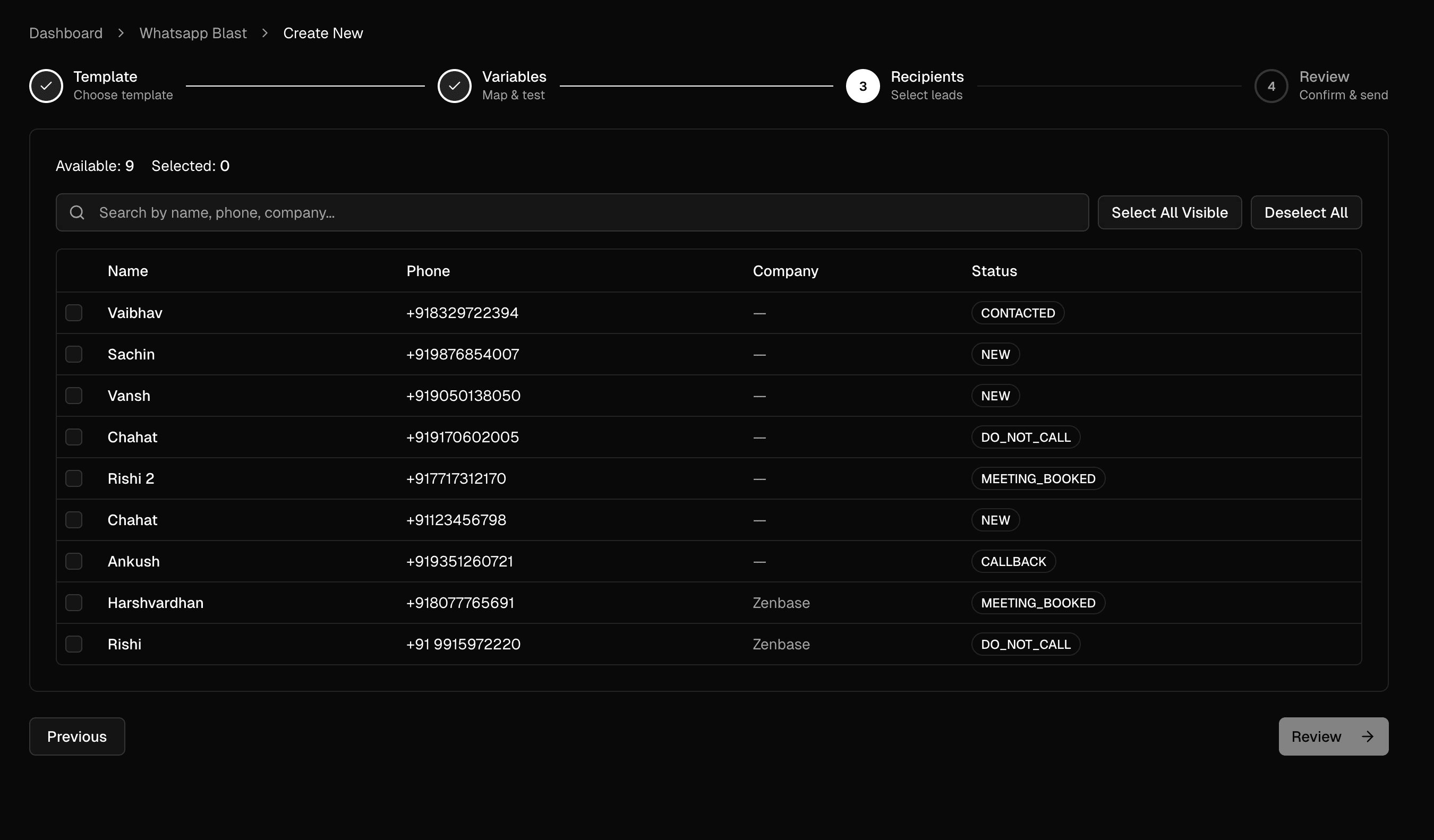
Only leads with phone numbers will appear here.
If someone is missing:
- go to the Leads page
- add the lead or update their phone number
- return to the blast flow
After that, they will show up in the recipient list.
Step 4: Review the Blast and Start It
On the final review step:
- give your blast a clear name, such as
April meeting reminders - confirm the selected template
- confirm the number of recipients
- click Start Blast
That is it. Ninja will queue the messages and you will be able to track them from the WhatsApp Blast area.
Troubleshooting Tips
If something does not work right away, these are the most useful checks:
- Login with Facebook is stuck: refresh the page and try again
- You selected the wrong business portfolio: close the Meta window and restart the setup from the beginning
- Phone connection seems slow: wait around 45 seconds before retrying
- Meta billing is added but messages still do not work: check that one card is marked Default, not only Backup
- Template is still pending: this is usually a Meta review delay, not a Ninja issue
- A blast message fails for some recipients: check whether those leads are missing a phone number or a mapped variable value
If Meta Says Your WhatsApp Account Is Already Shared With Another Partner
You may see an error like this:
"The business is already sharing this WhatsApp Business account with a partner. Switching partners is not supported in this flow."
In simple terms, this usually means your WhatsApp Business number is still attached to an older provider or partner behind the scenes, even if you thought it was already disconnected.
Here is the safest order to fix it:
- Open the WhatsApp Business app on your phone.
- Go to Settings > Account > Business Platform.
- If you see an old platform or partner there, tap it and disconnect it.
- Wait around 15 minutes, then restart the Ninja setup from the beginning.
- If the error still appears, open WhatsApp Manager inside Meta Business Manager and check whether the old WhatsApp Business account or phone number is still connected there.
- If Meta will not let you remove it because it is still "shared with a partner," contact your previous provider and ask them to fully unlink or release the number from their side.
- Once the old provider confirms it has been removed, start the Ninja connection again.
If Meta shows an error code such as #2655093, treat it as a strong sign that the previous partner connection has not been fully cleared yet.
Final Thoughts
The whole setup becomes much easier once you think of it as three simple stages:
- connect the WhatsApp Business app to Ninja through Meta
- make sure Meta billing is configured properly
- wait for template approval, then start blasting
If you follow the steps above carefully, especially the correct business portfolio, Connect a WhatsApp Business App, access code, and default payment method steps, you should be up and running smoothly.