
Welcome aboard! If you're reading this, your organization just signed up for Ninja, and you're about to discover how it makes managing leads, follow-ups, and client calls so much easier for your real estate team.
This guide walks you through everything — from your first login to connecting your favorite tools. No tech jargon, just a simple walkthrough.
Table of Contents
- What is Ninja?
- How Your Account Works
- Your First Login
- Setting Up Your Profile
- Exploring Your Dashboard
- Managing Leads
- Running Campaigns (AI Phone Calls)
- Follow-Ups — Let AI Prioritize Your Day
- Callbacks
- Meetings & Calendar
- Integrations — Connecting Your Tools
- Connecting GoHighLevel (GHL)
- Connecting Google Calendar
- WhatsApp Business (Beta)
- Account Settings & Business Hours
- For Organization Admins
- Tips & Best Practices
What is Ninja?
Ninja is a platform built specifically for real estate teams. It helps you manage your leads, make AI-powered phone calls, schedule follow-ups, book meetings, and keep everything organized — all in one place.
Think of it as your team's command center. Your leads come in, Ninja's AI voice agents call them, and when someone's interested, a meeting gets booked on your calendar. All automatically.
The big idea: Spend less time dialing phones and chasing leads. Let Ninja handle the heavy lifting so you can focus on closing deals.
How Your Account Works
Here's how Ninja is set up for your team:
- Your organization has one Admin (usually the team lead or manager). They're the ones who signed up and got everything started.
- The Admin can invite up to 10 team members to join under the same account. Each member gets their own login and their own workspace.
- The Admin approves your access. When you're invited, the admin sets up your initial login. You'll be prompted to update your details when you first sign in.
So in short: one account, one admin, up to 10 agents — all working together under the same organization.
Quick Roles Overview
| Role | What They Can Do |
|---|---|
| Admin | Invite/remove members, view team-wide stats, approve integrations, manage organization settings |
| Member | Manage their own leads, run campaigns, handle follow-ups, connect integrations, book meetings |
Your First Login
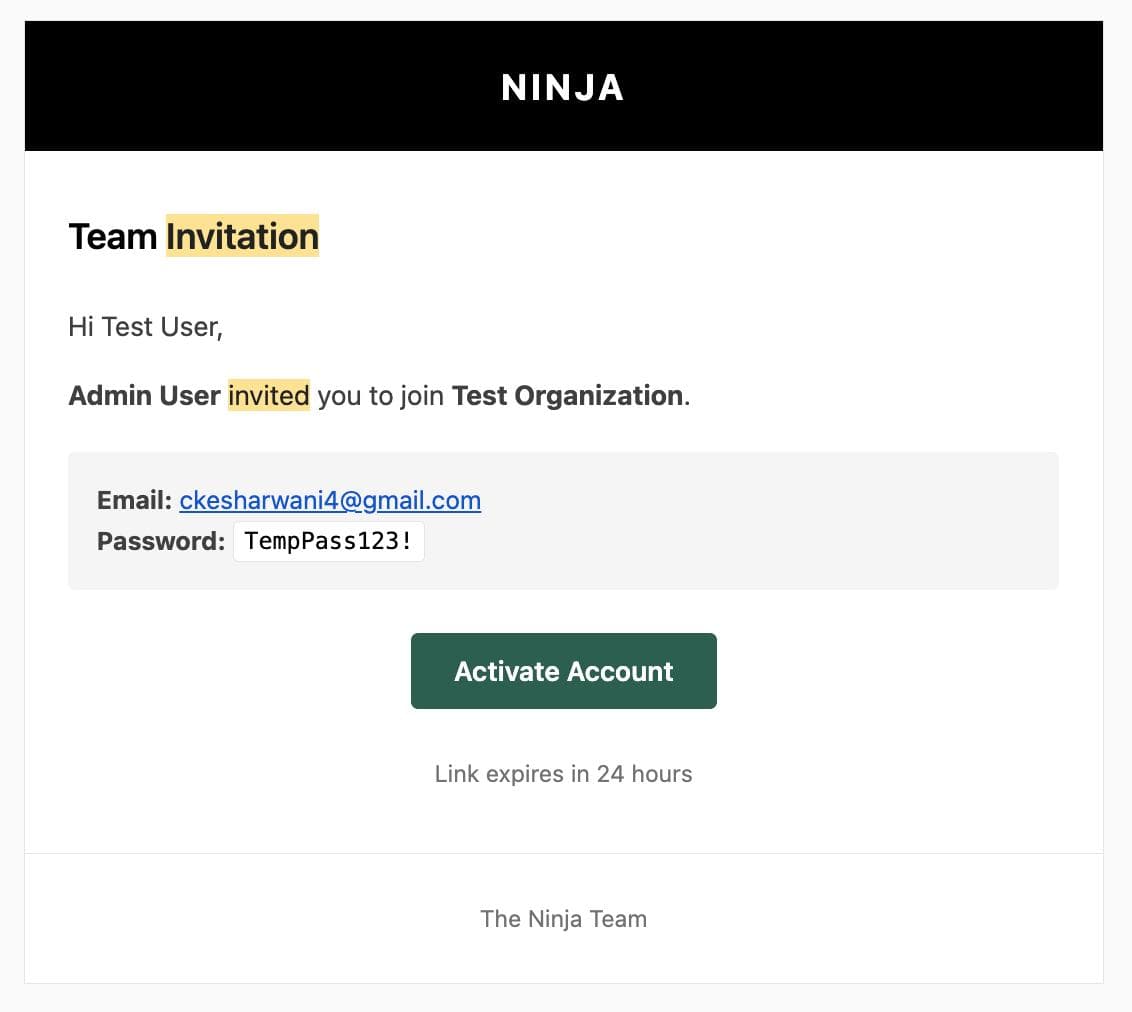
When your admin invites you, you'll receive your login credentials (email and a temporary password).
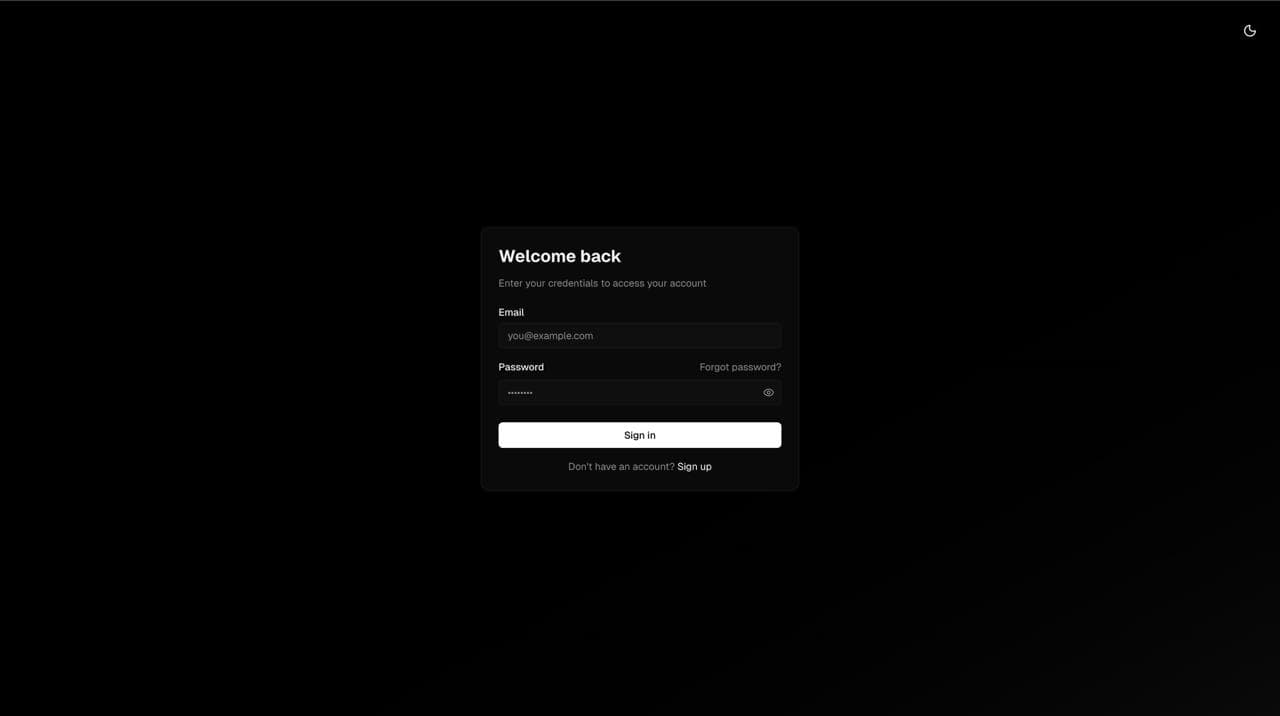
- Go to the Ninja login page and sign in with the credentials your admin shared.
- You'll be redirected straight to your Agent Portal — your personal workspace.
That's it. No complicated setup wizards. You're in.
Setting Up Your Profile
The first time you log in, Ninja will ask you to complete your profile before you can do anything else. This pops up as a quick form right on your screen — you can't skip it (don't worry, it takes 30 seconds).
Here's what you'll fill in:
- Phone Number (required) — so the system knows how to reach you
- Timezone — auto-detected for you, no need to change it
- Job Title (optional) — e.g., "Sales Agent" or "Listing Specialist"
- Department (optional) — e.g., "Sales", "Marketing"
- Bio (optional) — a short description about yourself
Hit Save, and you're good to go!
Exploring Your Dashboard
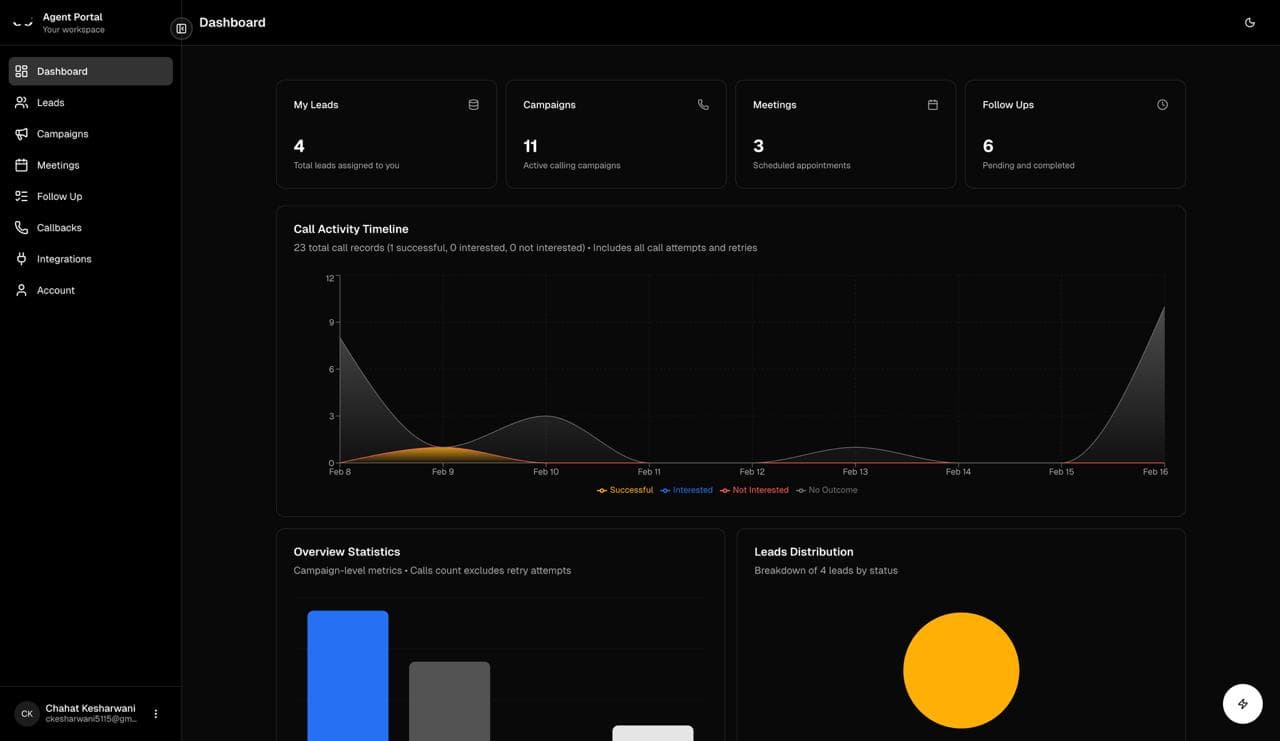
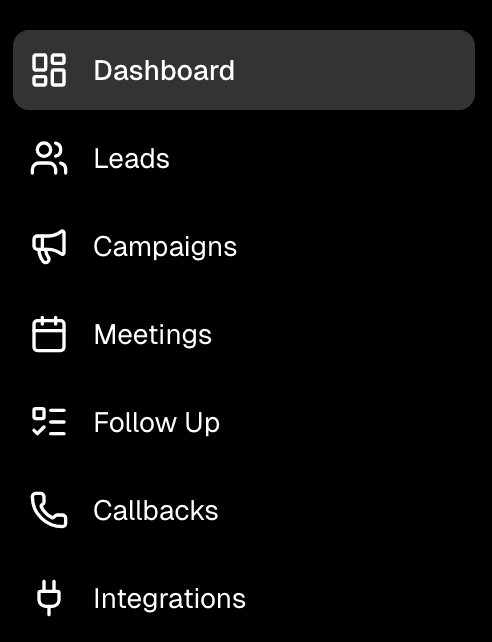
Once you're logged in, you land on your Dashboard — a clean, visual overview of how things are going.
What You'll See
At the top, you'll find four quick stats:
- Leads — how many leads are assigned to you
- Campaigns — number of call campaigns you've created
- Meetings — your scheduled appointments
- Follow Ups — pending and completed follow-ups
Below that, you'll see charts and graphs showing your performance over time:
- Call Activity — a visual timeline of your calls
- Leads Distribution — breakdown of your leads by status
- Meetings & Campaigns Distribution — how your meetings and campaigns are performing
At the bottom, you'll find:
- Recent Leads — your 5 latest leads (click any to see details)
- Recent Campaigns — your latest campaigns with status badges
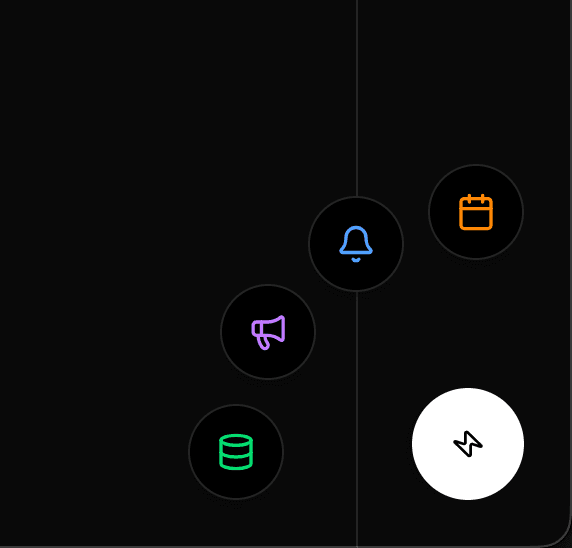
Quick Actions Button
See that floating button in the bottom-right corner? That's your Quick Actions menu. Tap it to instantly jump to:
- Leads
- Campaigns
- Follow Ups
- Meetings
Super handy when you want to get somewhere fast.
Managing Leads
The Leads page is where all your contacts live. Think of it as your personal CRM.
Adding Leads
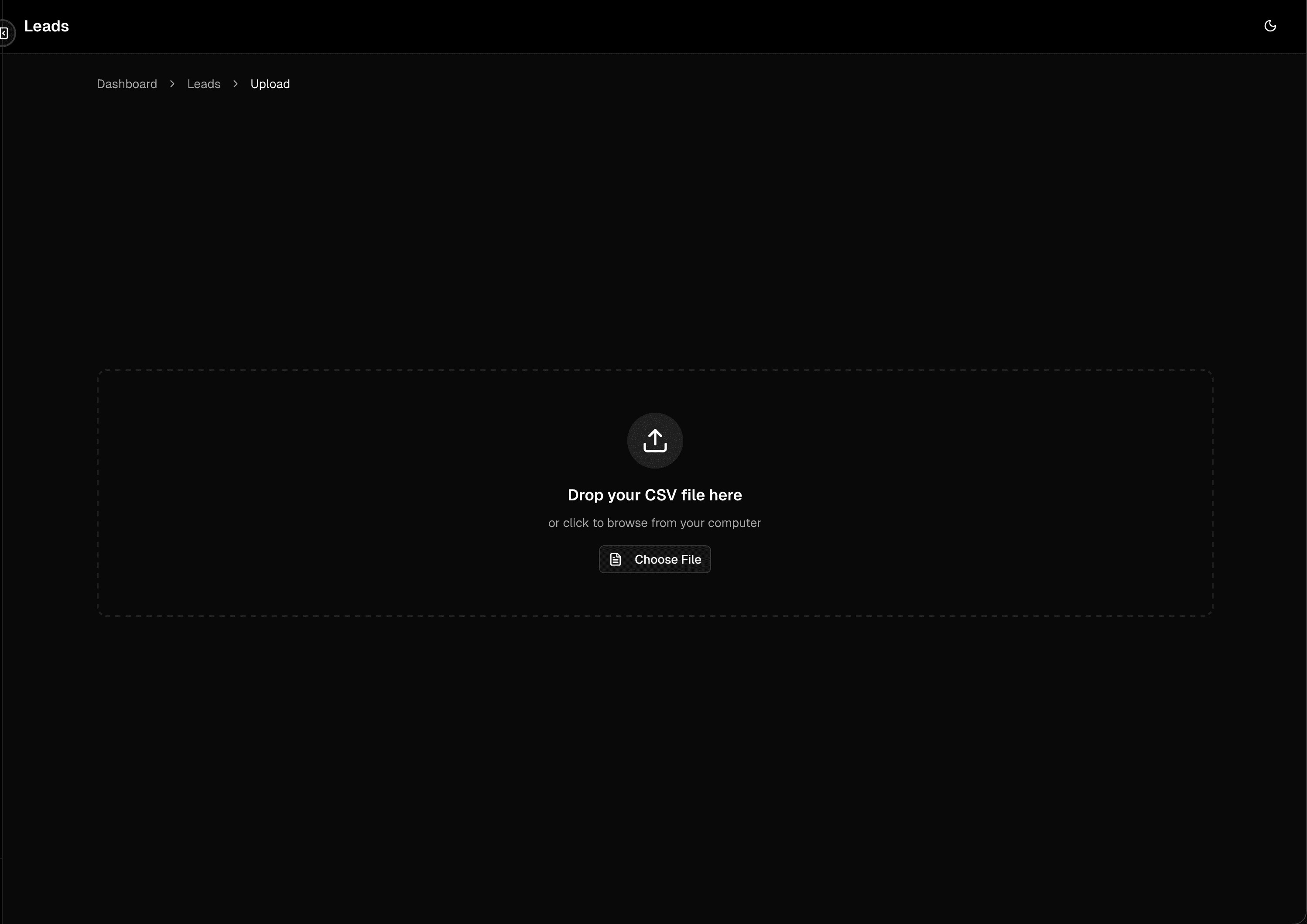
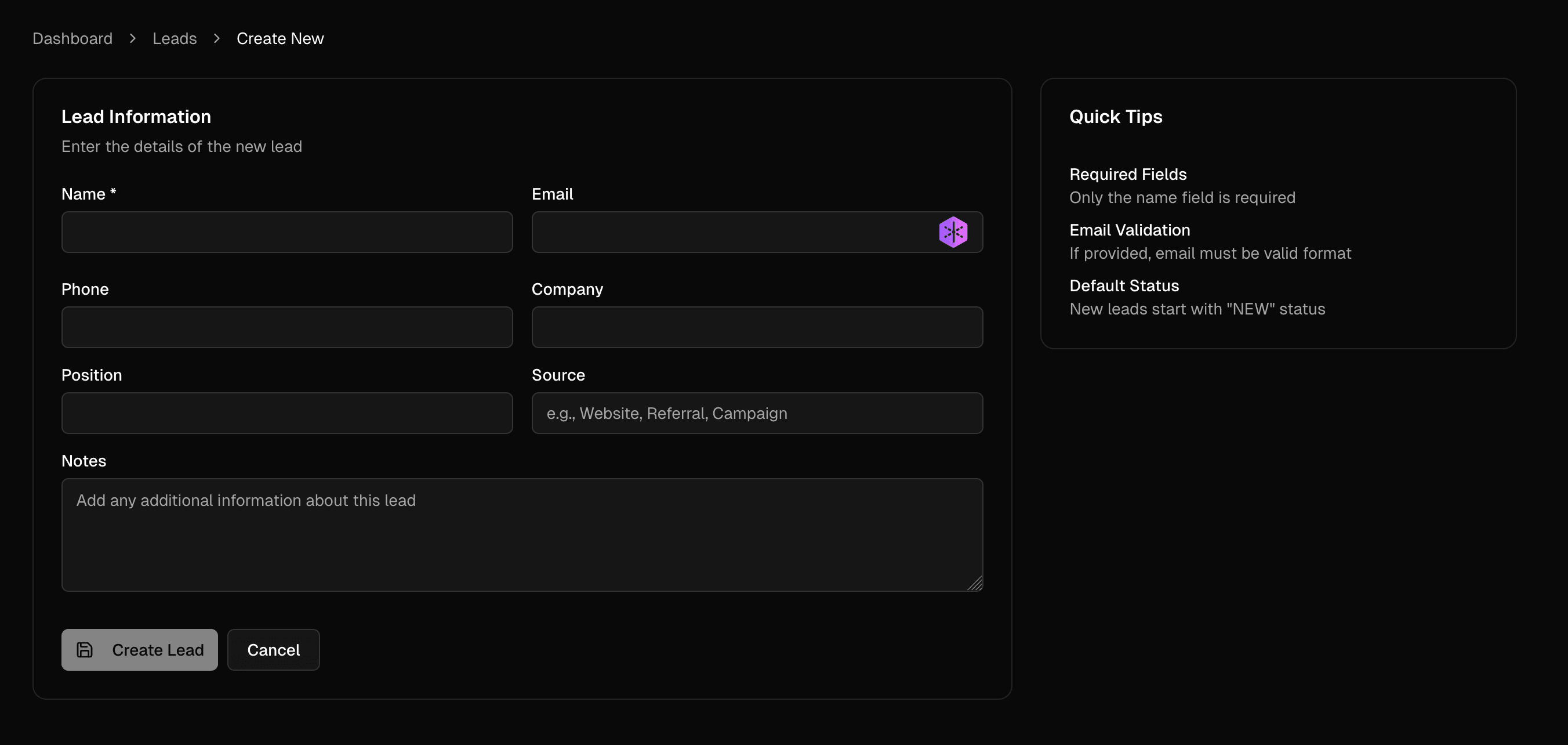
You can add leads in two ways:
- Add a single lead — click "Add Lead" and fill in their details manually
- Upload a CSV file — got a spreadsheet full of contacts? Just upload it and Ninja imports them all at once
Filtering and Searching
At the top, you'll see filter buttons to quickly sort your leads:
- New — fresh leads that haven't been contacted yet
- Contacted — leads your AI agent has already called
- Meeting Booked — the ones who said yes!
- Callback — leads who want to be called back
There's also a search bar to find any lead by name, email, or company.
Lead Details
Click on any lead to see their full profile — contact info, call history, and current status. Everything you need to know at a glance.
Running Campaigns (AI Phone Calls)
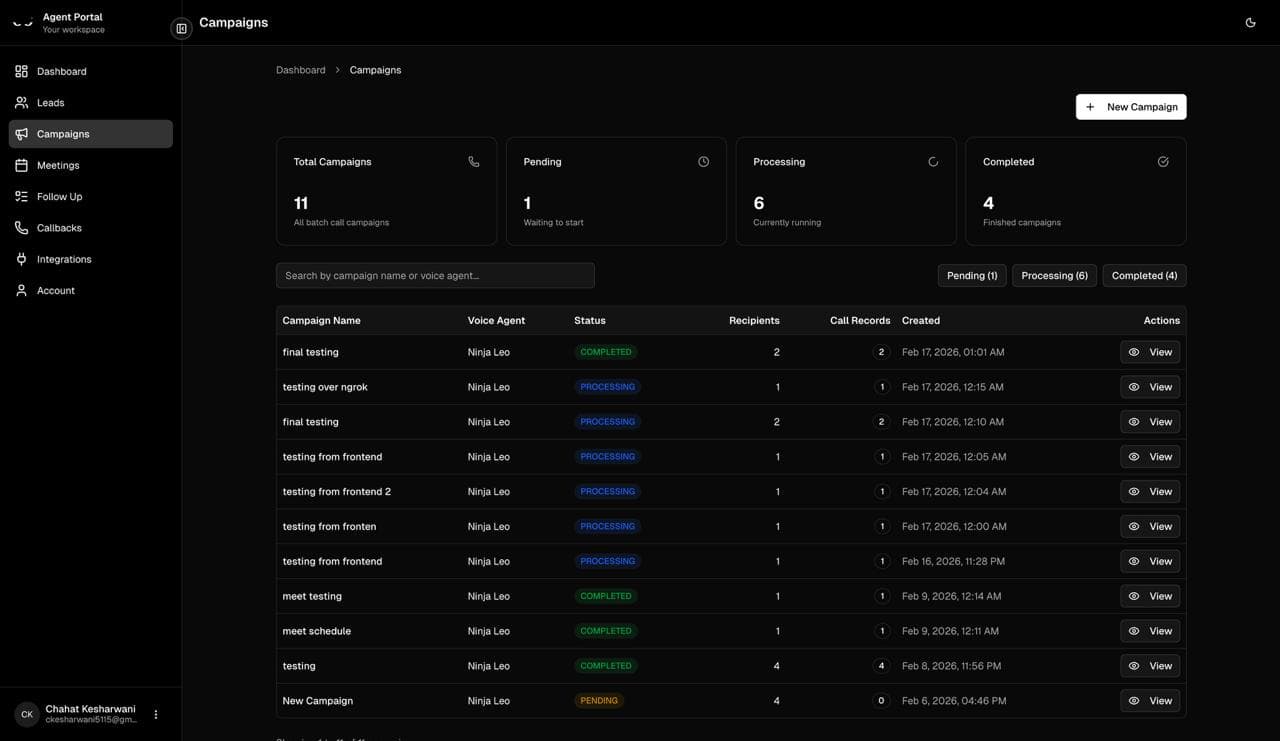
This is where Ninja really shines. Campaigns let you set up batch calls powered by AI voice agents. Instead of manually dialing each lead, you select a group of leads, pick a voice agent, and let Ninja handle the rest.
Creating a Campaign
- Click "New Campaign"
- Step 1: Select which leads you want to call
- Step 2: Choose an AI voice agent, give your campaign a name, and optionally schedule it for later
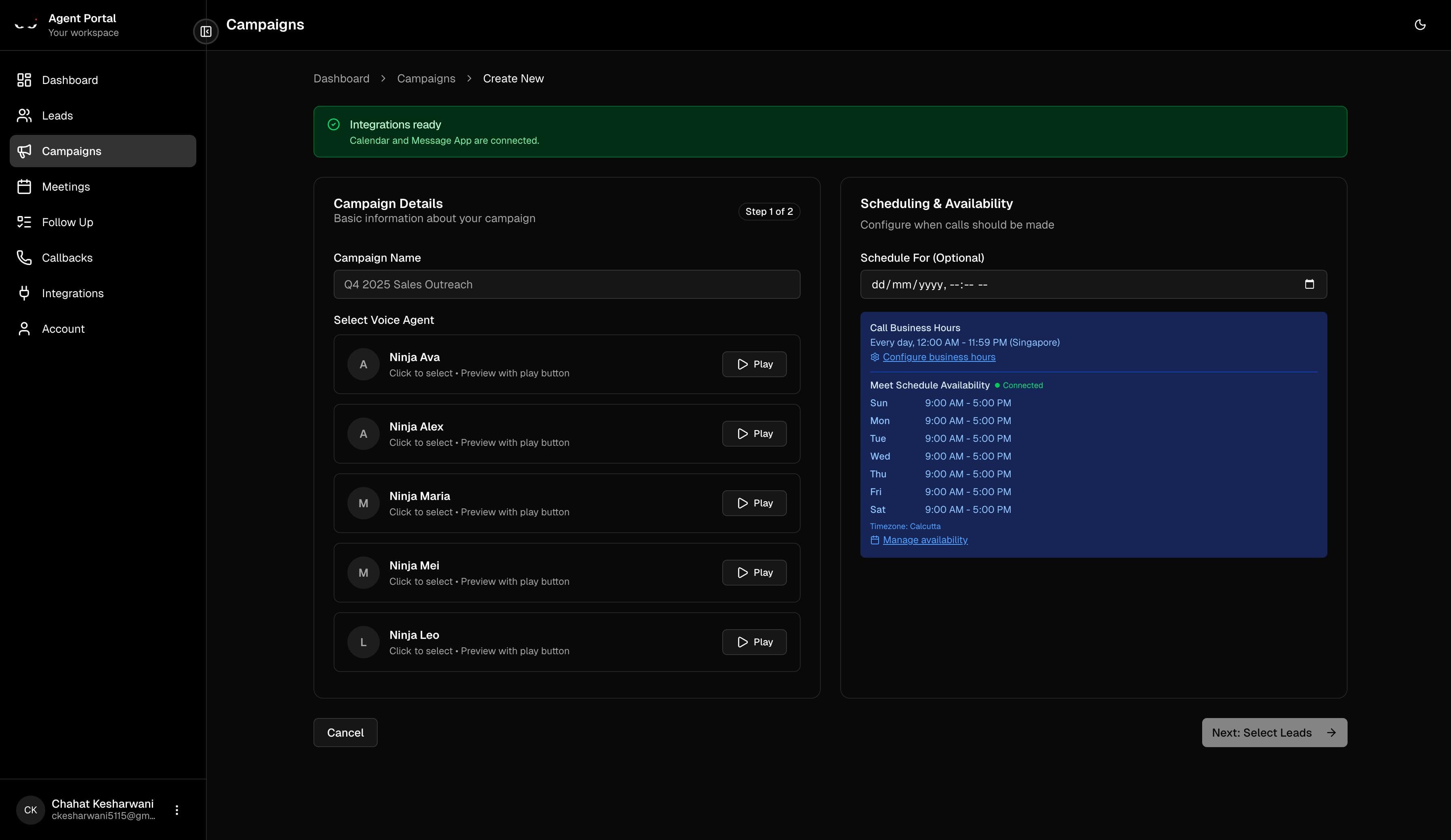
Good to know: Campaigns respect your business hours. If you schedule a campaign, calls will only go out during your set working hours. No one's getting a call at midnight!
Tracking Campaigns
Each campaign shows:
- Status — Pending, Processing, Completed, or Failed (color-coded so you can spot things at a glance)
- Recipients — how many leads are in the campaign
- Call Records — how many calls have been made
Voice Agents
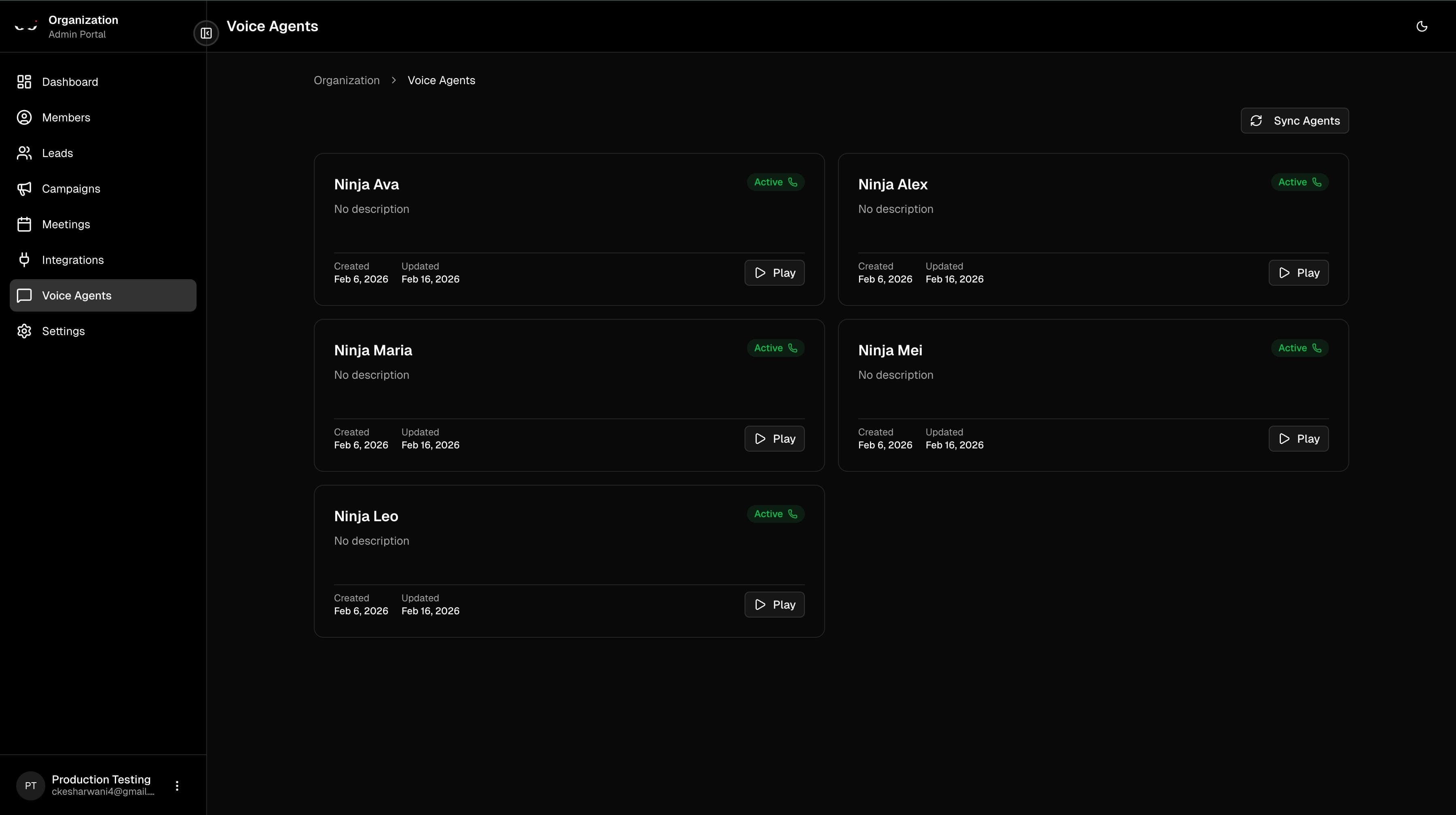
Your AI voice agents are the "callers" behind your campaigns. Each one has a unique voice and personality. You can:
- Browse all your available voice agents
- Preview their voice by clicking the play button on any agent card
- Sync agents to pull in the latest ones
Follow-Ups — Let AI Prioritize Your Day
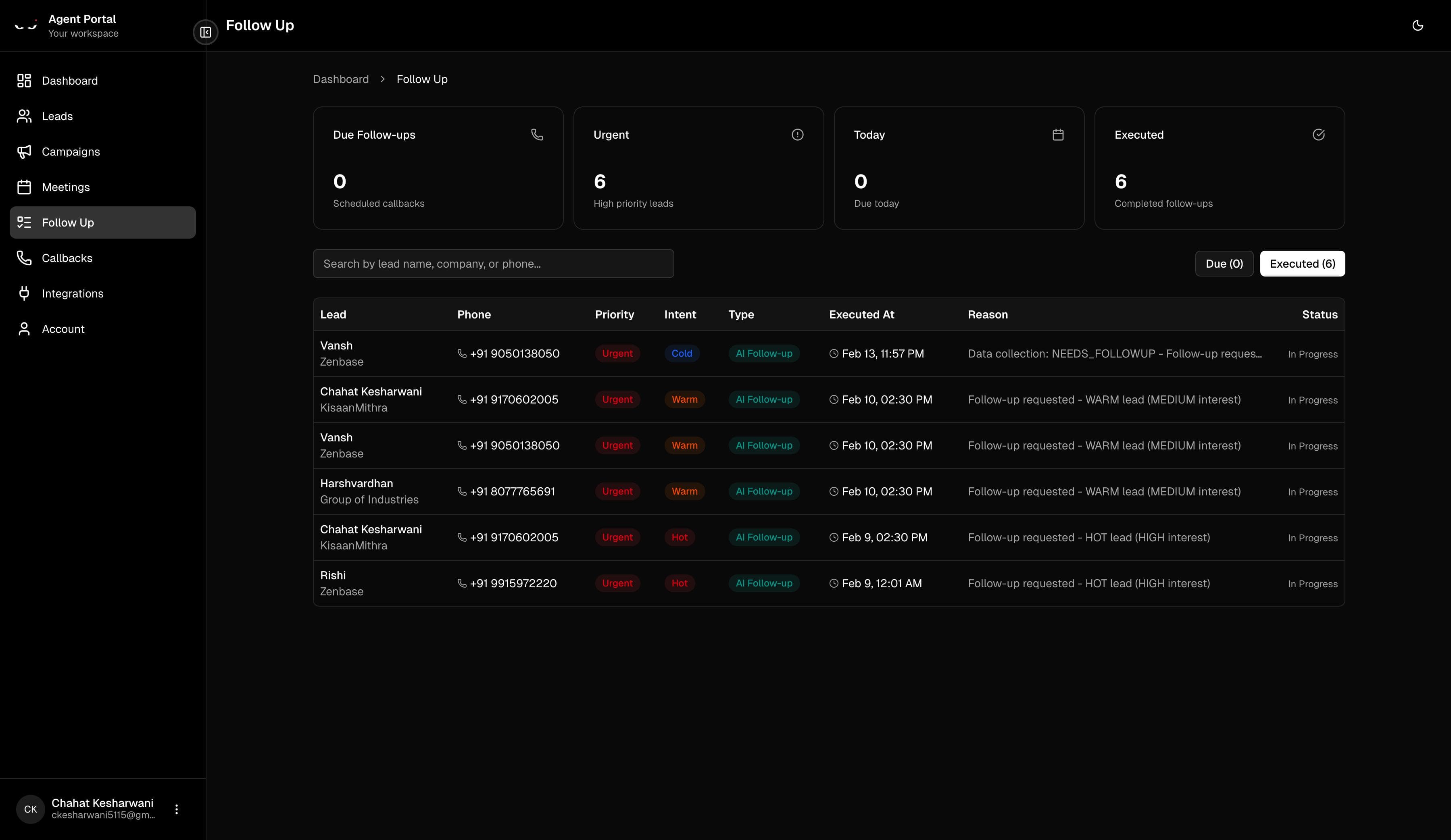
After your campaigns run, Ninja's AI analyzes every call and identifies leads that need a follow-up call. These are leads where a meeting wasn't booked — maybe they were interested but the timing wasn't right, had questions that need answering, or the call got disconnected unexpectedly.
The AI prioritizes these follow-ups so you know exactly who to reach out to and in what order.
How It Works
Ninja organizes your follow-ups into three priority groups:
- Urgent — reach out immediately
- Today — should be handled today
- Upcoming — scheduled for later
Each follow-up card shows you:
- Lead name and company
- Phone number
- Priority level (Urgent / Normal / Low)
- Intent — the AI classifies each lead as Hot, Warm, or Cold based on the call
- AI Confidence Score — how confident the AI is about this recommendation (e.g., "85%")
- AI Reasoning — expand this to see exactly why the AI thinks you should follow up with this person
Taking Action
For each follow-up, you have two options:
- Execute Now — triggers an immediate call to the lead
- Skip — the follow-up gets pushed to tomorrow
Callbacks
The Callbacks page shows all your scheduled return calls — both automated and manual ones.
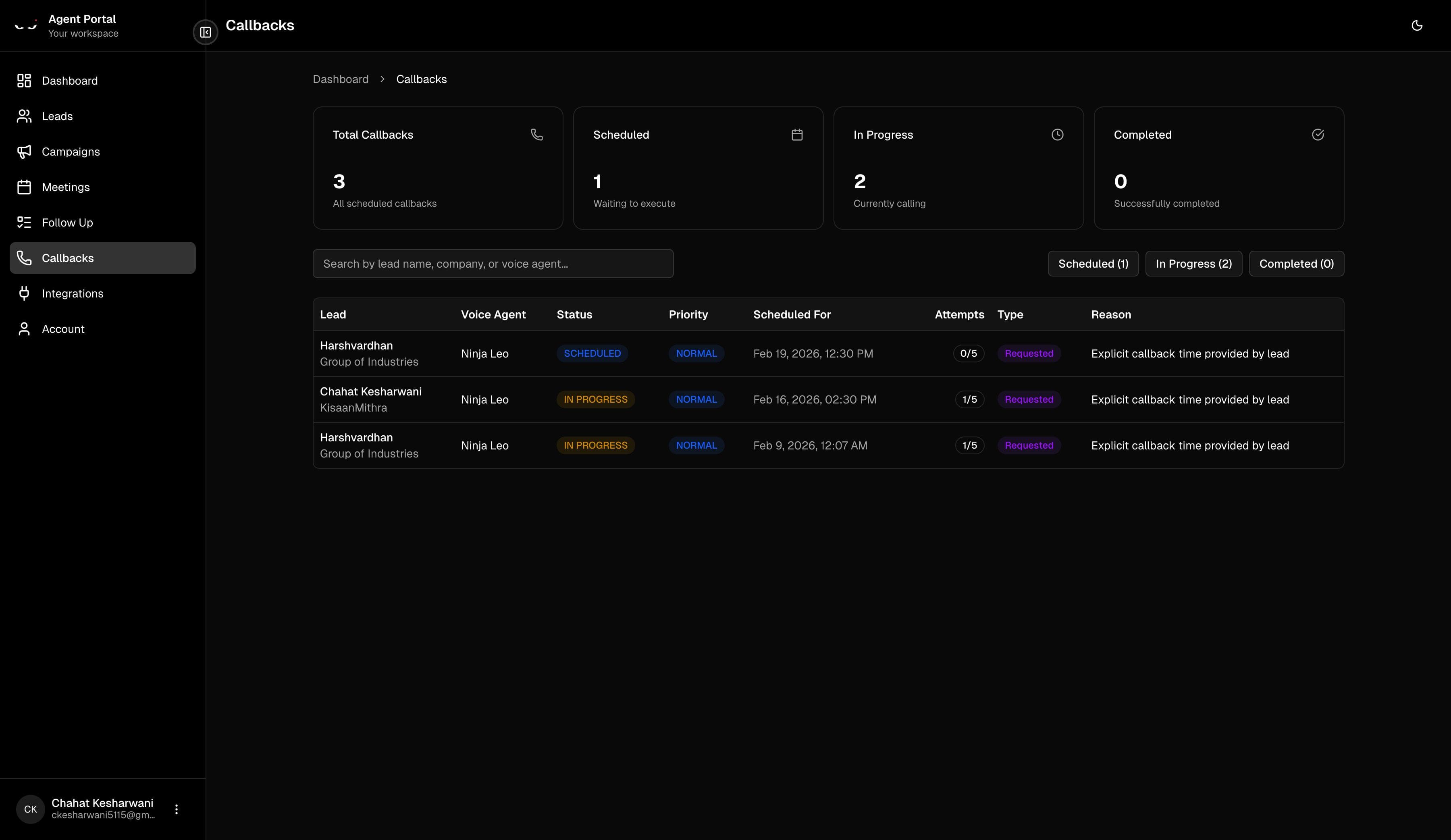
You'll see:
- Status badges — Scheduled, In Progress, or Completed
- Priority levels — so you know which ones matter most
- Attempt tracking — e.g., "2/3 attempts made"
- Overdue alerts — past-due callbacks are flagged in red so nothing falls through the cracks
Meetings & Calendar
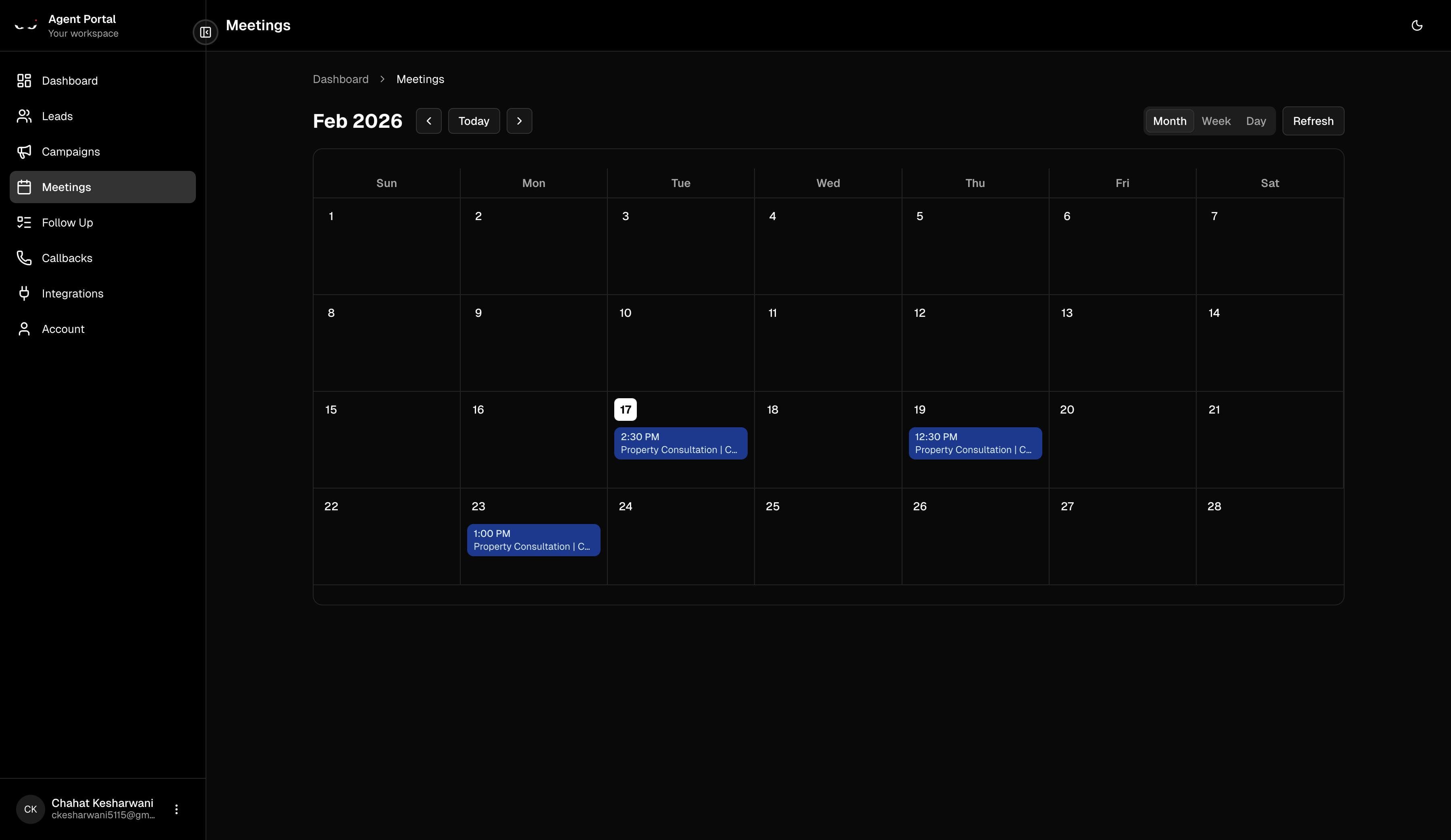
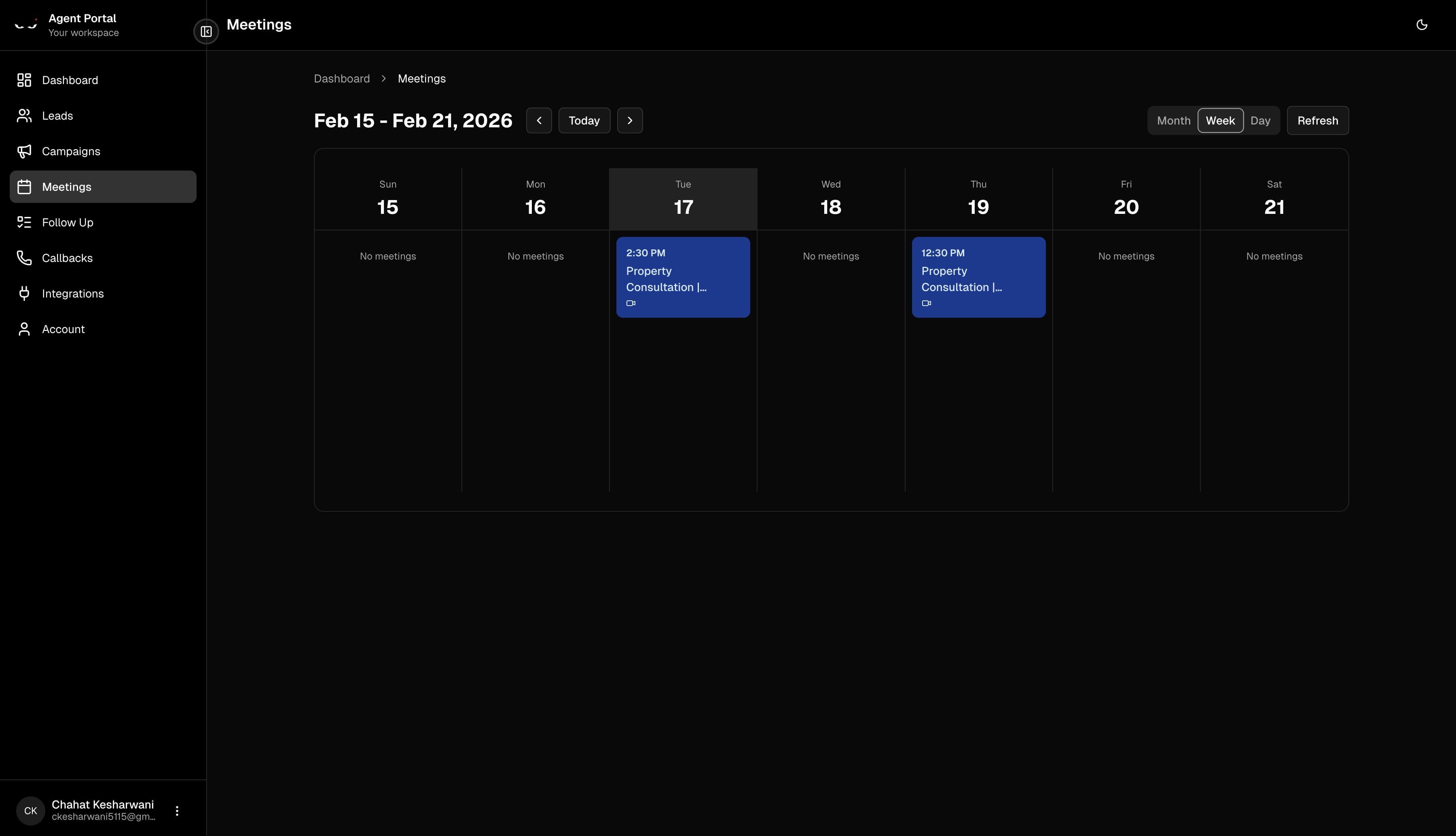
When your AI voice agents book meetings with interested leads, they show up on your Meetings page — a full calendar view.
Calendar Views
You can switch between three views:
- Month — the classic calendar grid, great for a big-picture look
- Week — see your week at a glance with hourly time slots
- Day — a detailed view of a single day's meetings
Meeting Details
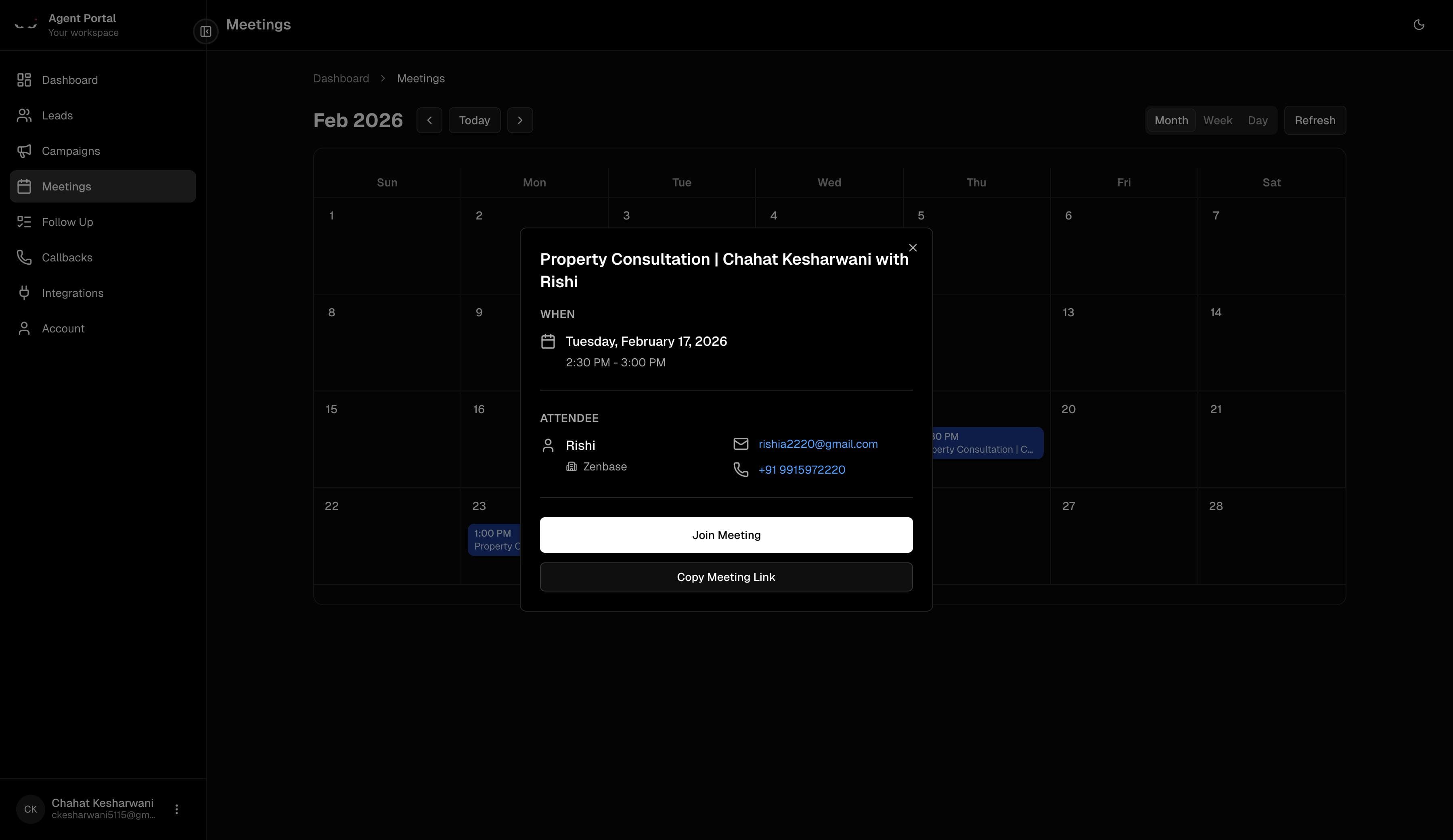
Click on any meeting to see the full details:
- Date and time
- Attendee's name, company, email, and phone
- Join Meeting button — jump straight into the video call
- Copy Meeting Link — to share with anyone
Integrations — Connecting Your Tools
Ninja works even better when you connect it with the tools you already use. Head to the Integrations page to see what's available.
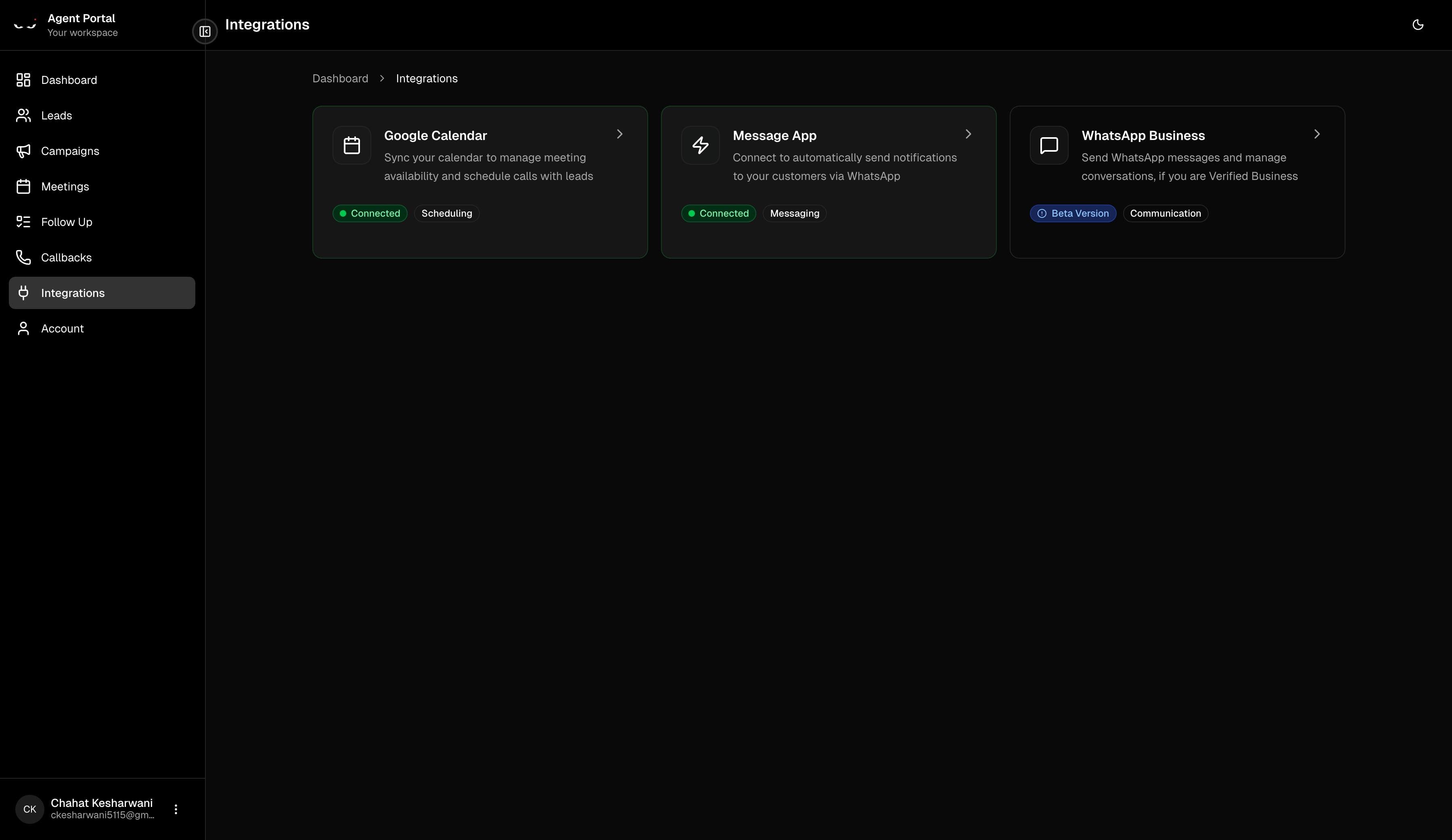
You'll see three integration options:
| Integration | What It Does |
|---|---|
| GoHighLevel (GHL) | Connects your CRM sub-account for messaging and lead management |
| Google Calendar | Syncs your calendar so meetings are booked automatically and you avoid double-bookings |
| WhatsApp Business | Send WhatsApp messages to leads (currently in Beta) |
Each card shows whether you're Connected (green badge) or Not Connected (orange badge).
Let's walk through each one.
Connecting GoHighLevel (GHL)
If you haven't heard of GoHighLevel, it's a popular all-in-one CRM and marketing platform. Ninja integrates with GHL to manage messaging and lead communication through your own GHL sub-account.
This is the main integration most teams use, and it has a simple step-by-step setup process.
Step-by-Step Setup
Step 1: Create Your Sub-Account
On the GHL integration page, click the "Create Sub-account" button. This sets up your own GHL location that's linked to your Ninja account.
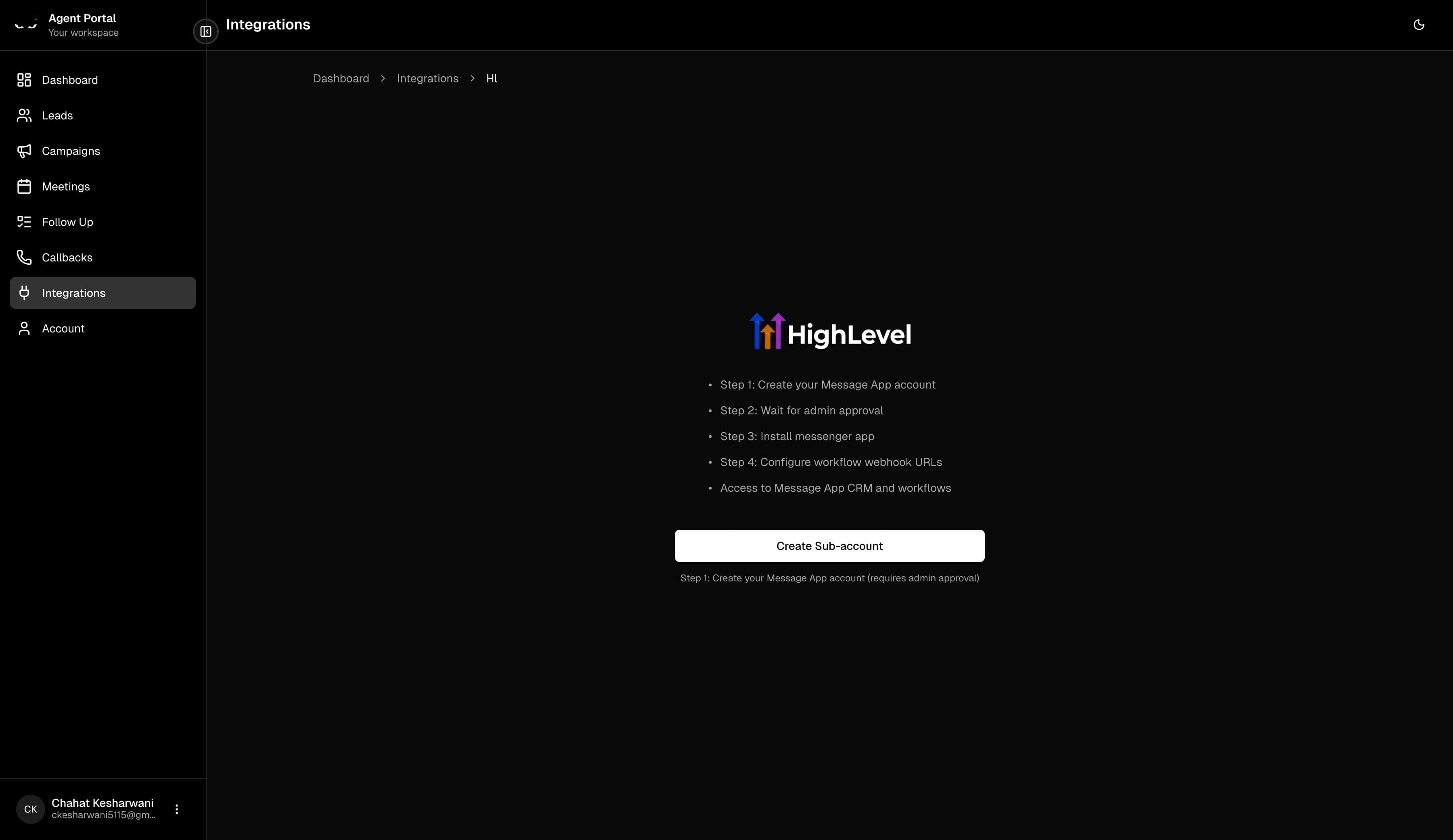
Once you click it, your request goes to your organization admin for approval. You'll see a status message:
"Your sub-account has been created. An admin will review and approve your request shortly."
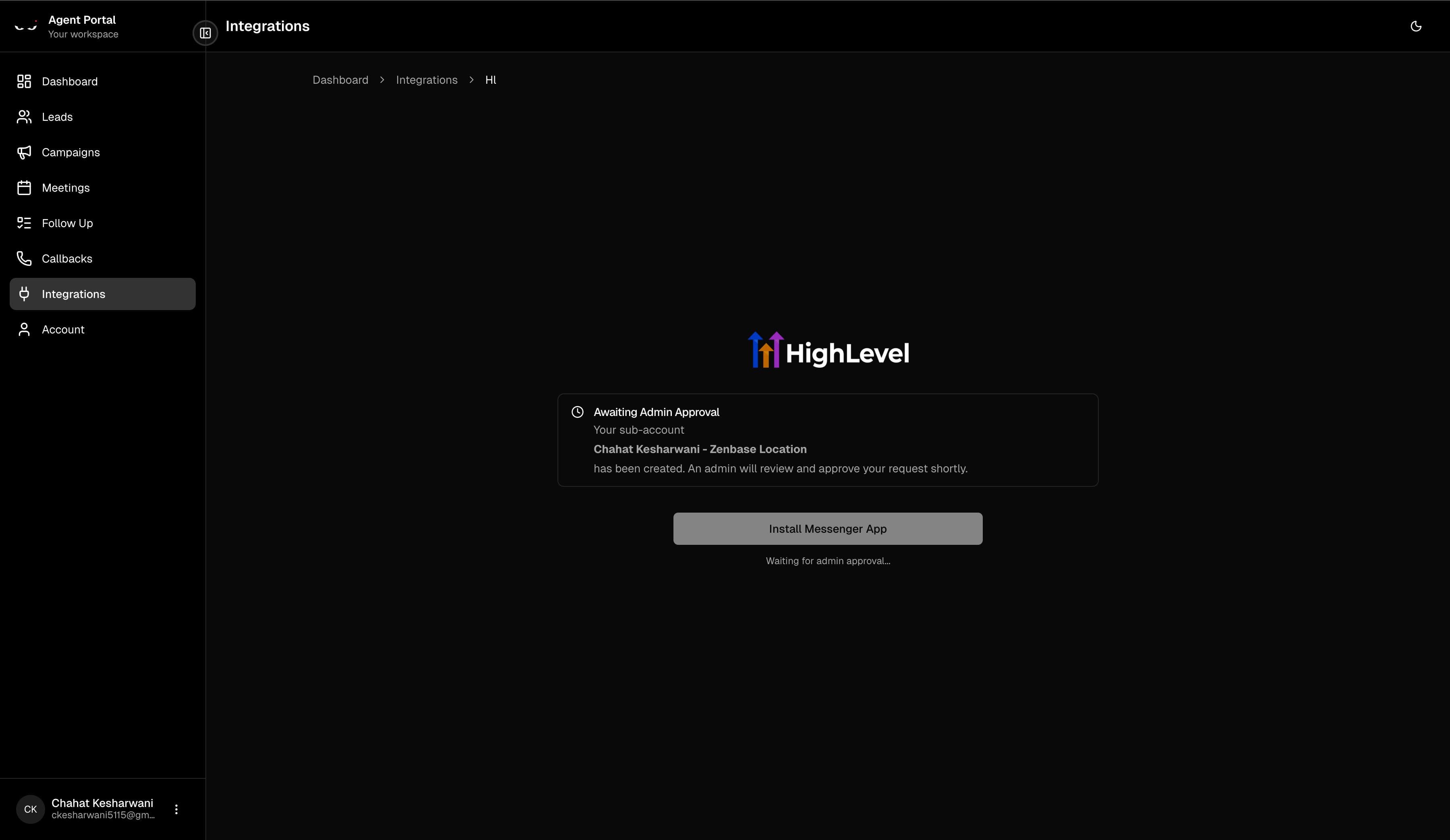
Step 2: Wait for Admin Approval
Your admin will review your request and either approve or provide feedback. This usually doesn't take long — they get notified right away.
- ✅ Approved — you'll see a green "Approved!" message, and you can move to the next step
- ❌ Needs Attention — if there's an issue, you'll see the reason. Just reach out to your admin to sort it out
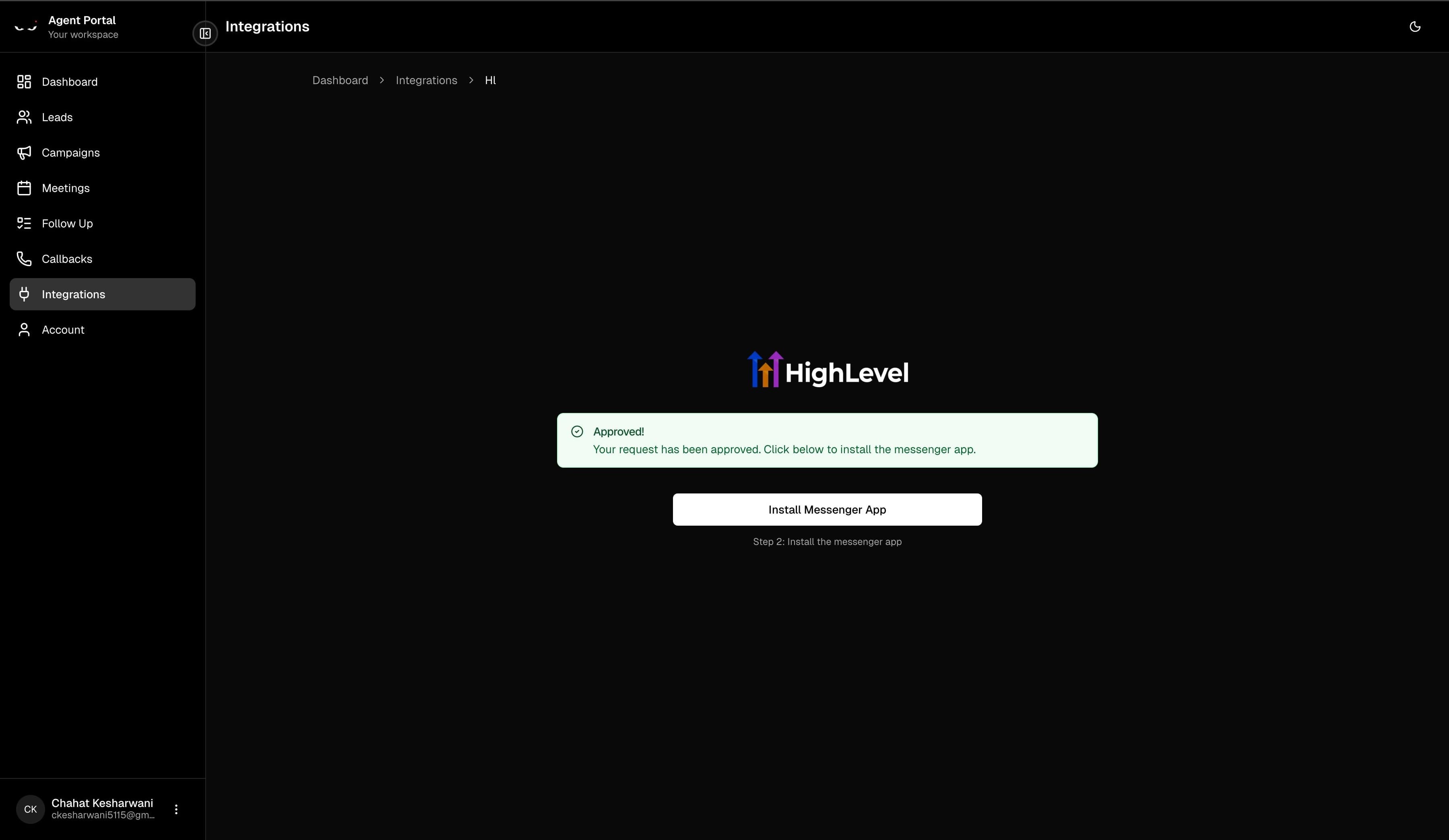
Step 3: Install the Messenger App
Once approved, click the "Install Messenger App" button. This opens a quick authorization flow where you give Ninja permission to connect with your GHL sub-account.
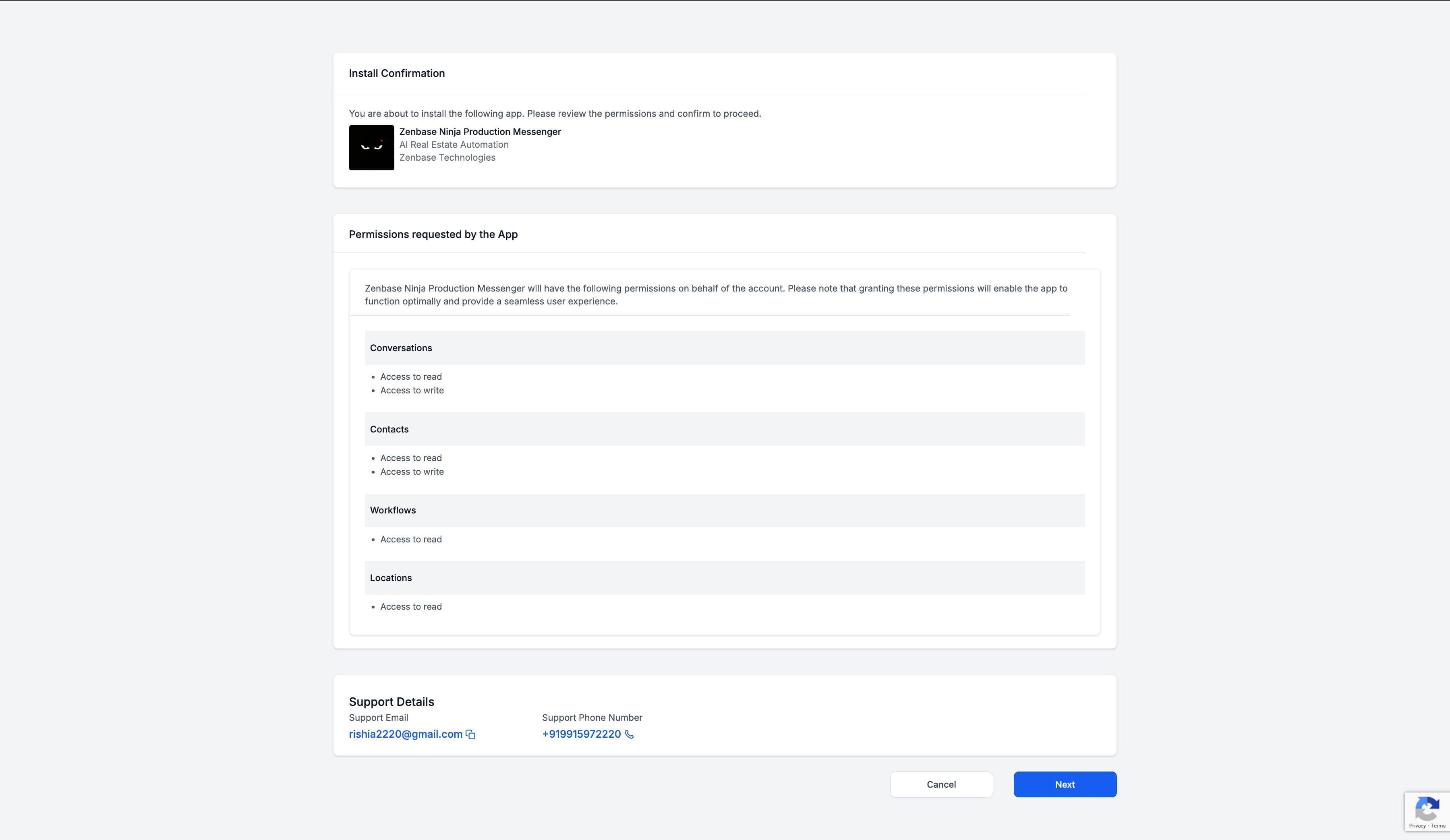
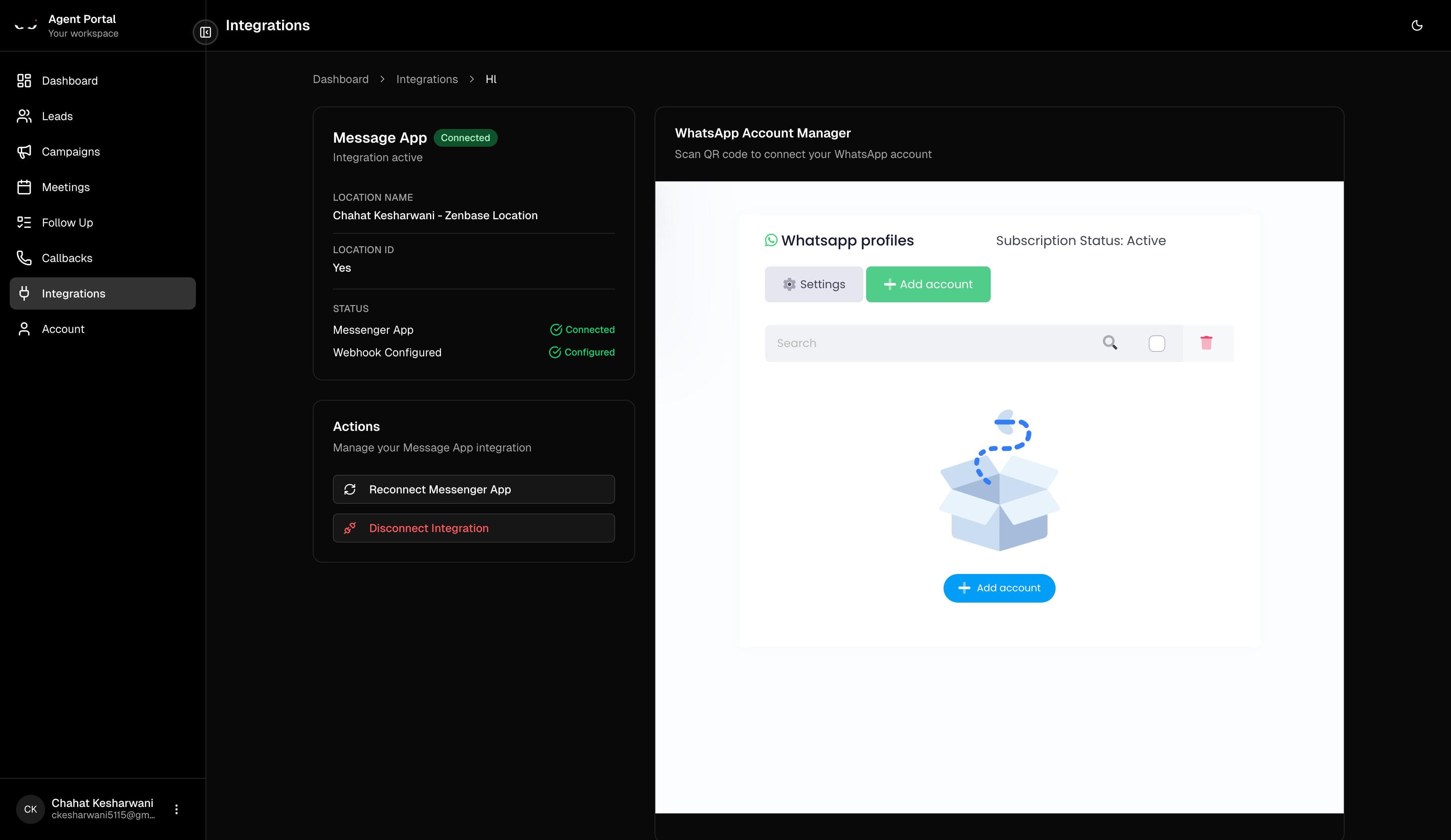
You'll be redirected to GHL for a quick authorization, and then brought right back. Once complete, your status changes to Connected!
Step 4: Scan the WhatsApp QR Code
Next, you'll see a QR code. Open WhatsApp on your phone and scan this code to link your WhatsApp Business account.
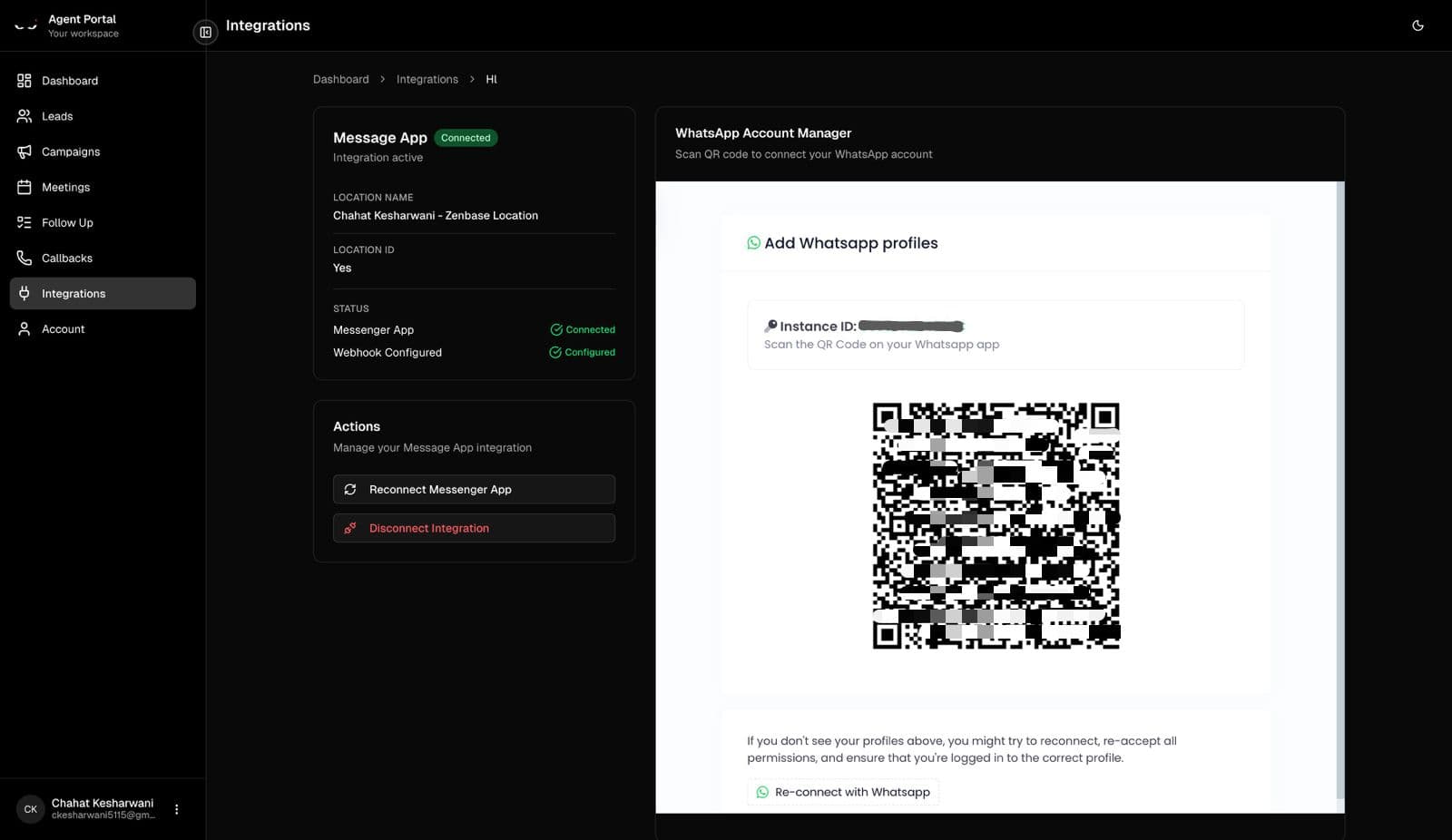
If the connection doesn't work: Simply refresh the page and try scanning again.
Step 5: Assign to User
In the embedded iframe, click "Assign to User" and select your name from the dropdown.
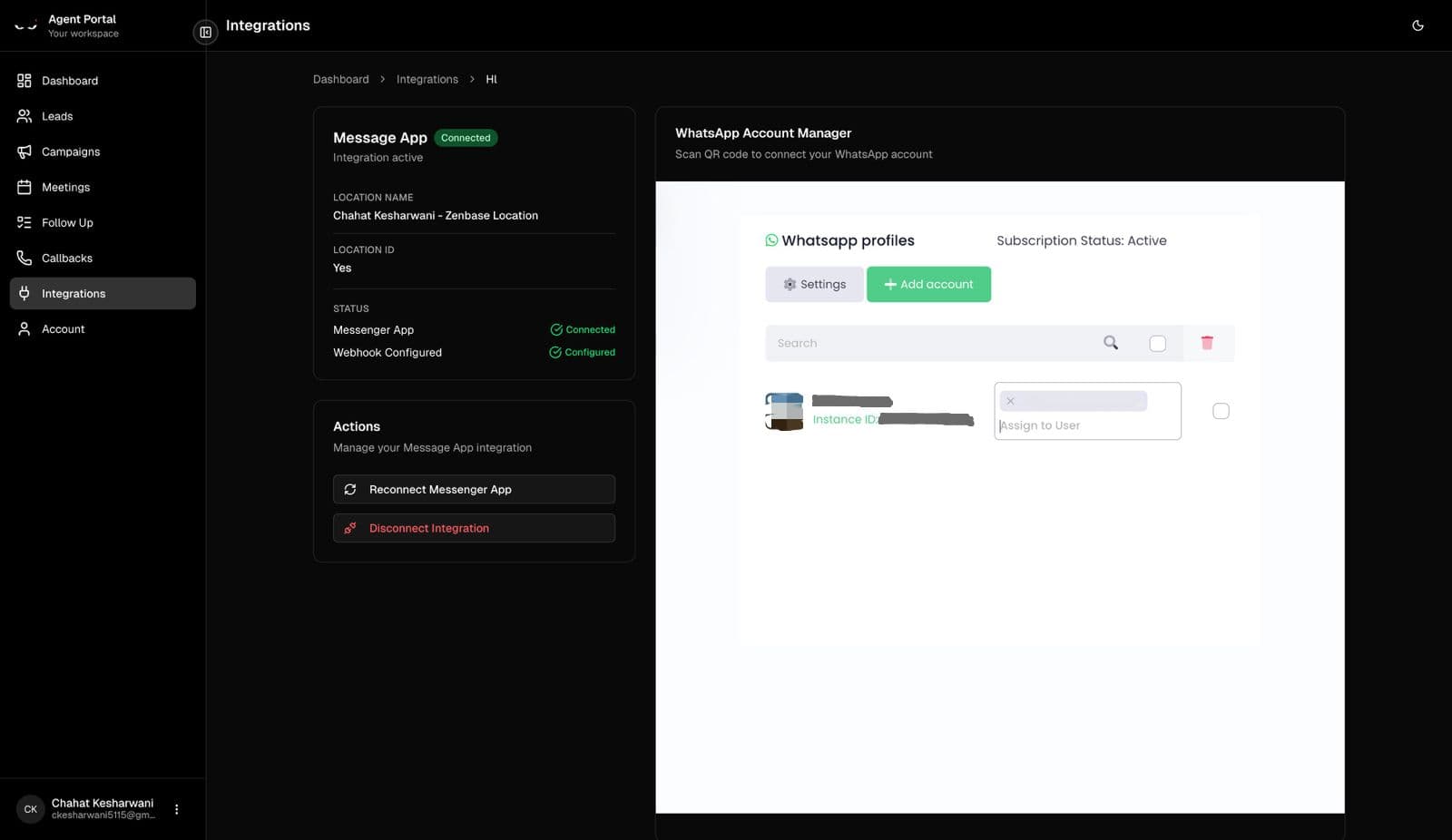
Can't see your name? This might be an issue on our end. Please contact us at rishi@silentninja.tech and we'll help you get set up.
Once You're Connected
After everything is set up, your GHL integration page shows a clean two-panel view:
- Left side: Your connection details — location name, messenger status, and webhook status
- Right side: Your WhatsApp Account Manager where you can manage your messaging setup
Connecting Google Calendar
Google Calendar integration makes sure your meetings are automatically synced and prevents double-bookings. Here's how to set it up.
Important for Initial Users: Since you're one of our initial users and we're still in the testing phase, you may need to ask your admin or contact us to add your email to our Google Cloud project allowlist before you can connect your calendar. If you run into any authorization issues, reach out to rishi@silentninja.tech and we'll get you set up right away.
Connecting
- Go to Integrations → Google Calendar
- Click "Connect Google Calendar"
- Sign in with your Google account and grant permission
- Select which calendar to use for bookings
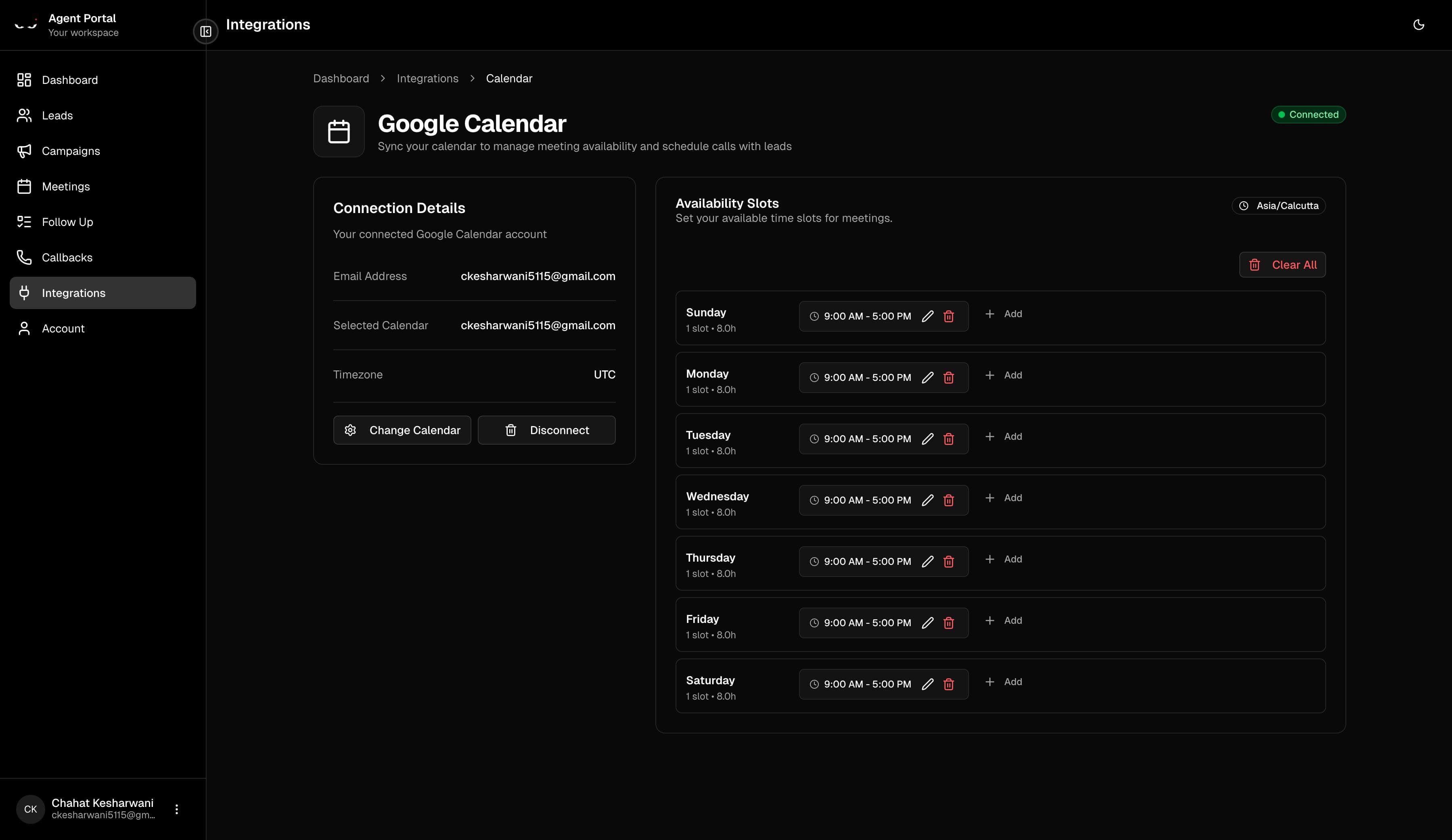
That's it! Once connected, you'll see:
- Your connected email
- The calendar being used
- Your timezone
What You Get
- Automatic availability sync — Ninja checks your calendar before booking anything
- No double-bookings — if a time slot is taken, it won't be offered
- Timezone-aware scheduling — works correctly no matter where you or your leads are
- Custom availability windows — set exactly when you're available for meetings
Setting Your Availability
Once connected, you can configure Availability Slots — specific days and time windows when you're open for meetings.
Changing or Disconnecting
You can always:
- Change Calendar — switch to a different Google Calendar
- Disconnect — remove the integration entirely (don't worry, your Google Calendar itself stays untouched)
WhatsApp Business (Beta)
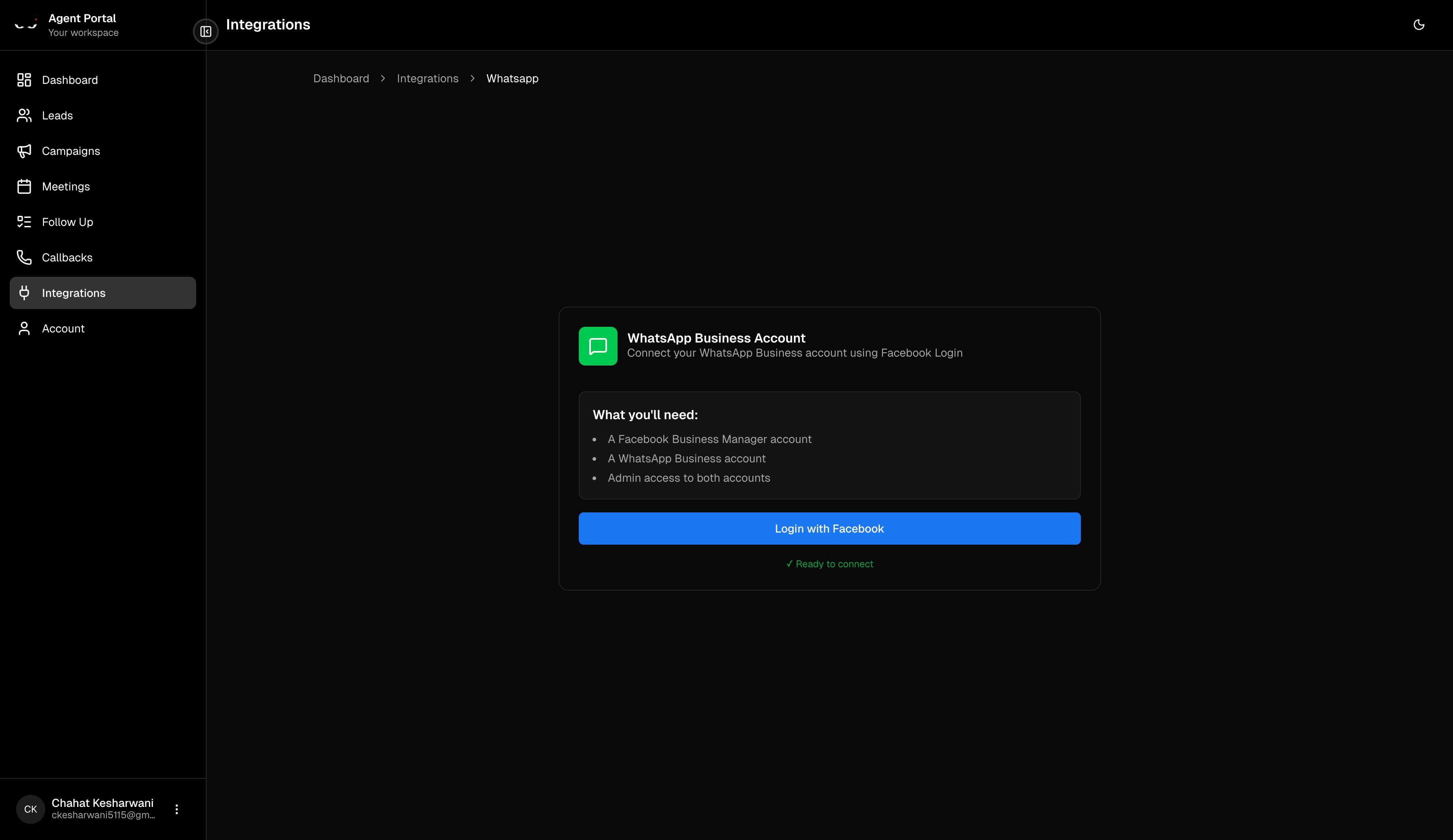
WhatsApp Business integration is currently in Beta. It lets you send WhatsApp messages to your leads — great for markets where WhatsApp is the preferred communication channel.
Not Recommended for Production Use
WhatsApp Business integration is still in beta and can be unreliable. Additionally, you'll need a Meta-verified WhatsApp Business account to use this feature, which requires going through Meta's business verification process.
Unless you already have a verified business account and are comfortable with beta features, we recommend waiting until this integration is fully stable.
Since it's in beta, features are still being refined. Stay tuned for updates! If you'd like to try it out, check the integration page for the latest setup instructions.
Account Settings & Business Hours
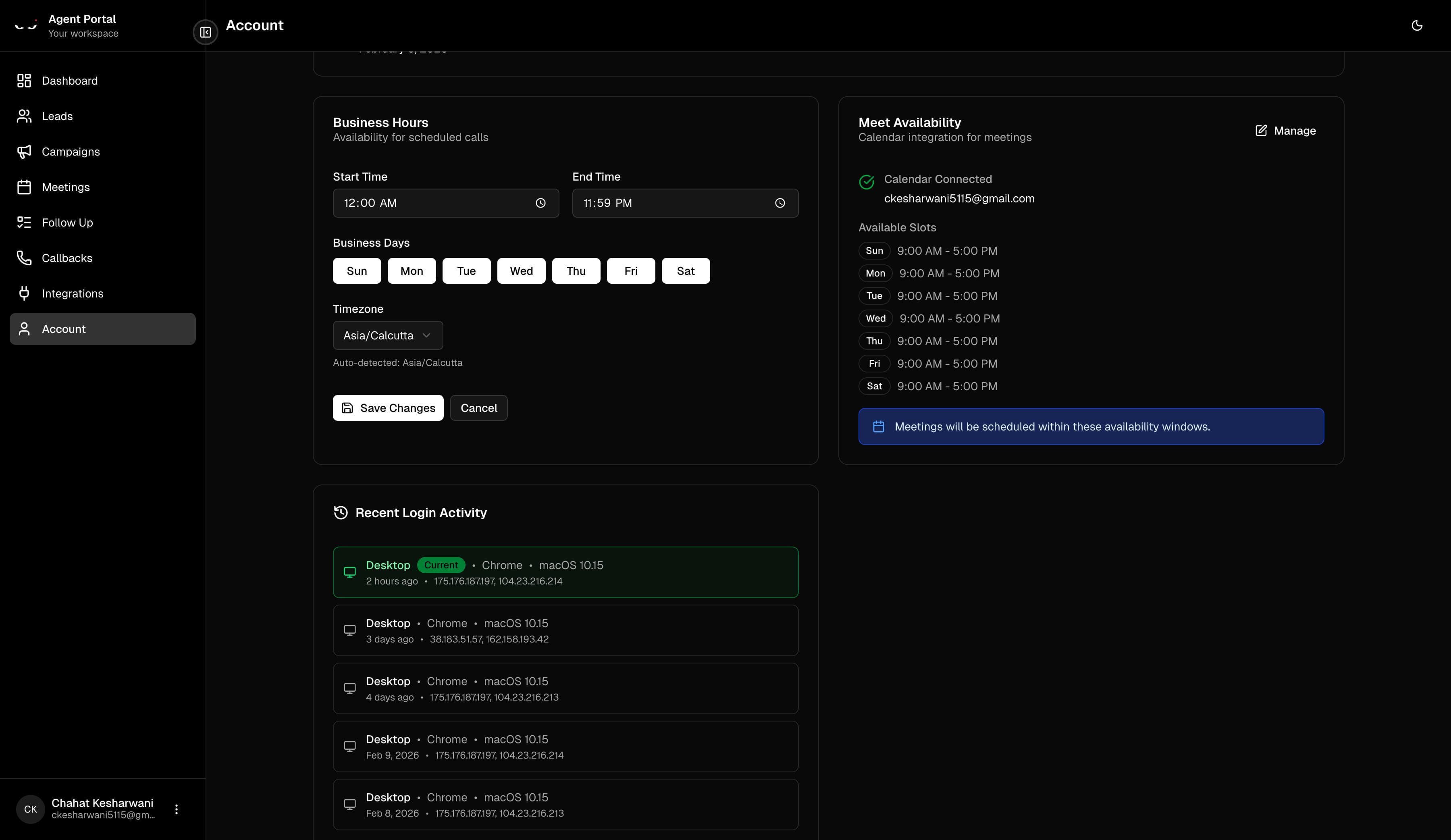
Your Account page is where you manage your personal settings. It's organized into clean sections.
Your Profile
Update your personal info anytime:
- Name, phone number, timezone
- Job title and department
- A short bio
Business Hours
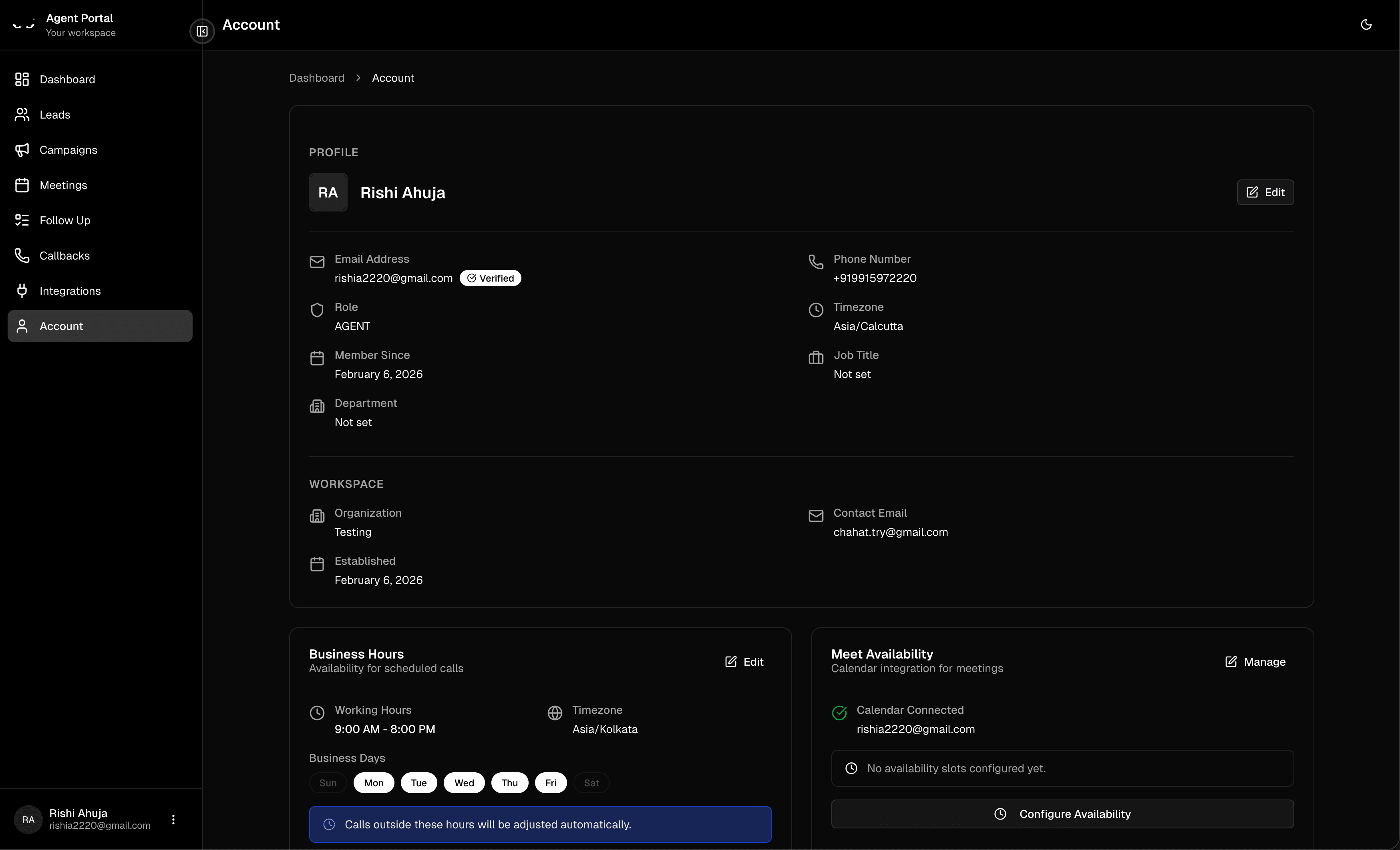
This is important! Set your working hours and active business days so that:
- Campaigns only run calls during your working hours
- Meetings are only booked when you're available
- Follow-ups are scheduled appropriately
By default, it's set to Monday–Friday, but you can customize it to match your actual schedule.
Login History
Curious about your recent logins? Scroll down to see a log of your recent sessions — including device info and timestamps. Your current session is highlighted.
For Organization Admins
If you're the admin managing your team, here's what's different for you.
Your Dashboard
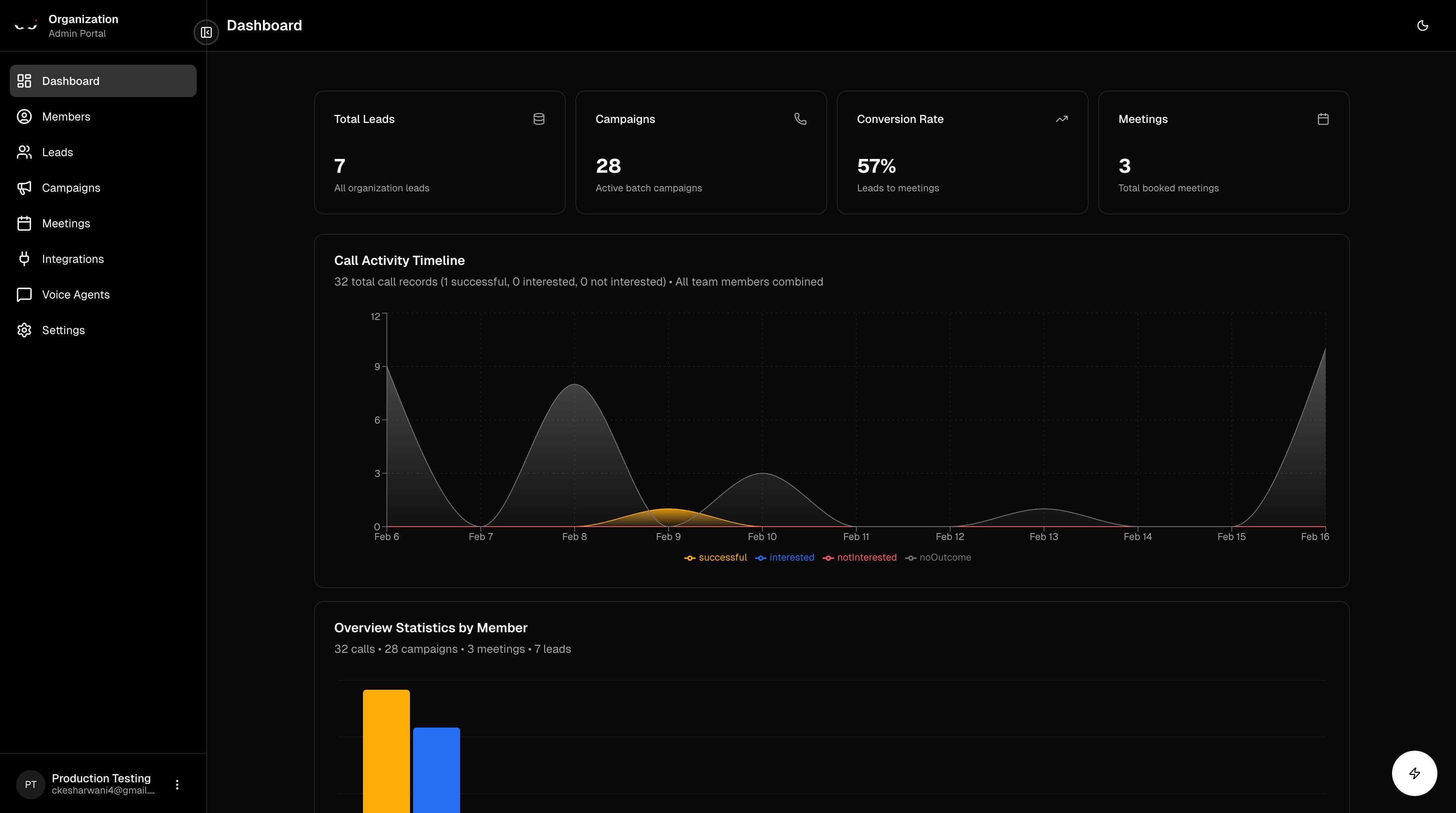
Your dashboard shows organization-wide stats instead of just your personal data:
- Total leads across the team
- All campaigns (not just yours)
- Team conversion rate (leads → meetings)
- Total meetings booked by everyone
You'll also see charts comparing team members' performance side by side.
Managing Your Team
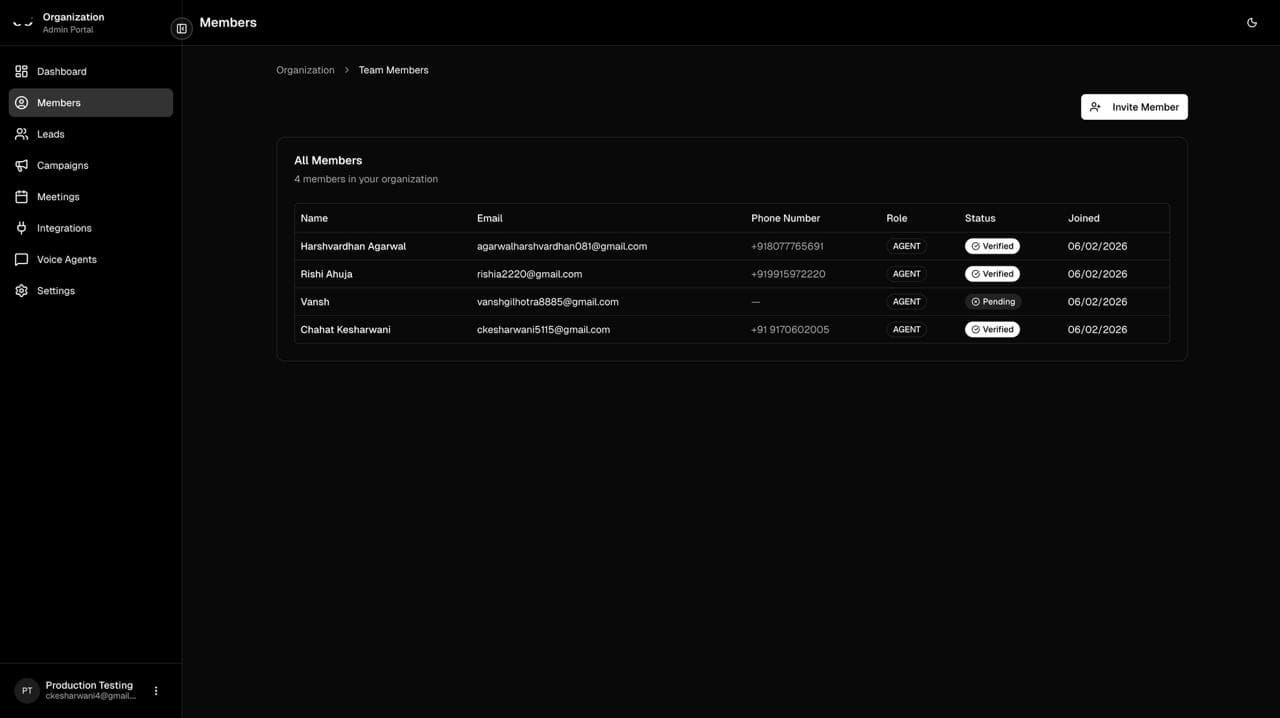
Go to the Members page to manage your team (up to 10 members per organization).
Inviting a New Member
- Click "Invite Member"
- Enter their name, email, and set an initial password
- Share the login details with them
They'll be prompted to complete their profile on first login.
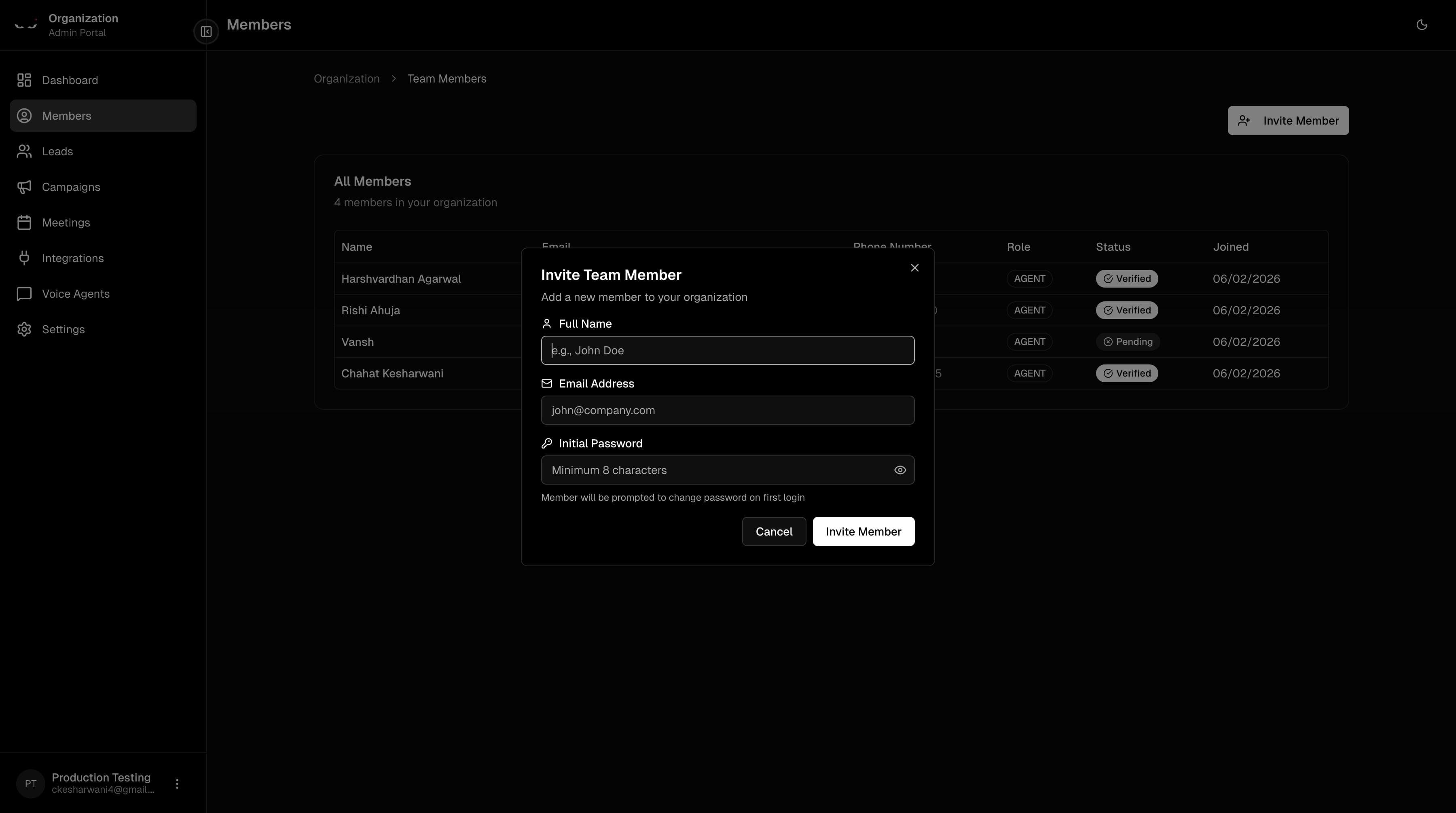
Note: If you've hit the 10-member limit, the invite button will be disabled with a "Maximum member capacity reached" message. Contact support if you need more seats.
Removing a Member
Need to remove someone? Click delete on their profile. You'll need to type their name to confirm — this prevents accidental removals.
Team Integration Status
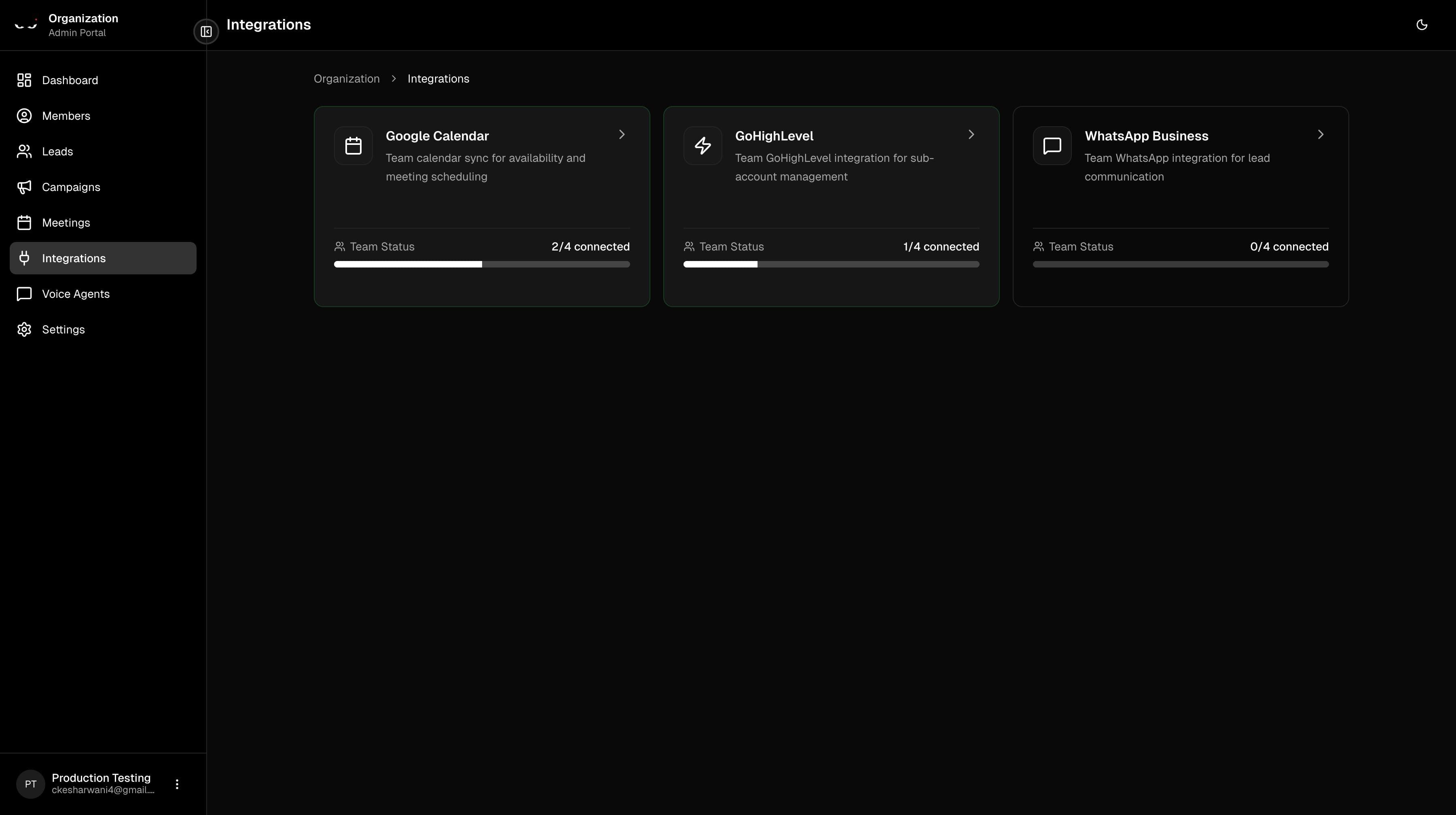
As an admin, your Integrations page looks a bit different. Instead of connecting your own accounts, you see a team-wide overview:
- How many members are connected to each integration (e.g., "3/5 connected" with a progress bar)
- A table showing each member's connection status
Voice Agents
When you first access the Voice Agents page, you'll need to sync your agents to see the full list available to your organization.
To sync: Just click the "Sync Agents" button at the top of the Voice Agents page. This pulls in all the latest AI voice agents your team can use for campaigns.
Tips & Best Practices
Here are a few tips to get the most out of Ninja:
- Set up your business hours first — this ensures campaigns and meetings respect your schedule
- Connect Google Calendar early — the sooner it's synced, the sooner meetings can be auto-booked
- Connect GHL — it's the primary integration that powers messaging and lead management
- Check Follow-Ups daily — the AI does the analysis, but you make the final call on who to contact
- Use the Quick Actions button — that floating button saves time getting to Leads, Campaigns, and more
- Upload leads in bulk — if you have a spreadsheet, the CSV upload is way faster than adding them one by one
- Preview your voice agents — listen to how each AI agent sounds before using them in a campaign
Need Help?
If you run into any issues or have questions, reach out to your organization admin. They have a full view of the team's setup and can help troubleshoot most things.
Welcome to Ninja — time to close more deals! 🥷